Mission Control
One workload, three lenses: brief it, watch it run, score it.
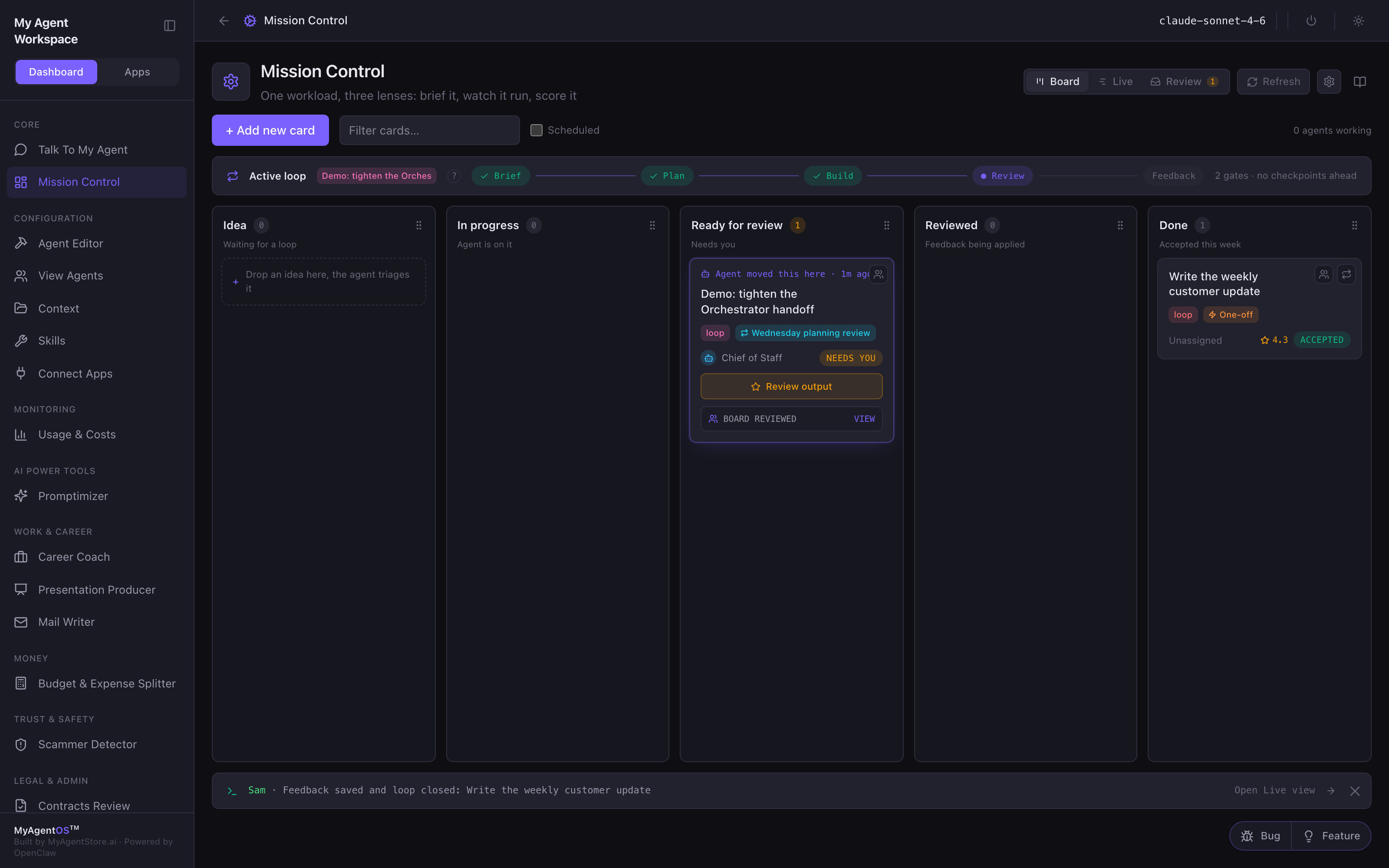
Mission Control is where you hand a piece of work to your agent and stay in charge of it without doing it yourself. You describe the outcome you want, the agent runs the work in an isolated loop, and nothing is finished until you have reviewed the output and scored it. Your scores become learnings the agent carries into the next loop.
What you might use it for:
- Draft my weekly customer update: the agent writes it every week, you score the draft, and next week's draft arrives better.
- Watch the competition and report back every Monday: a scheduled loop that re-runs on a cadence and carries your feedback forward each time.
Who it is for: anyone who wants an agent to own a task end to end (a document, a plan, a recurring report) while keeping approval and quality control in their own hands.
Where to find it: the sidebar, under Core: Mission Control
(/mission-control).
Watch first: mission-control.mp4 (65 seconds; captions toggleable in your player, or load mission-control.srt). The screen is a real recording of the product; the narration is an AI-generated voice.
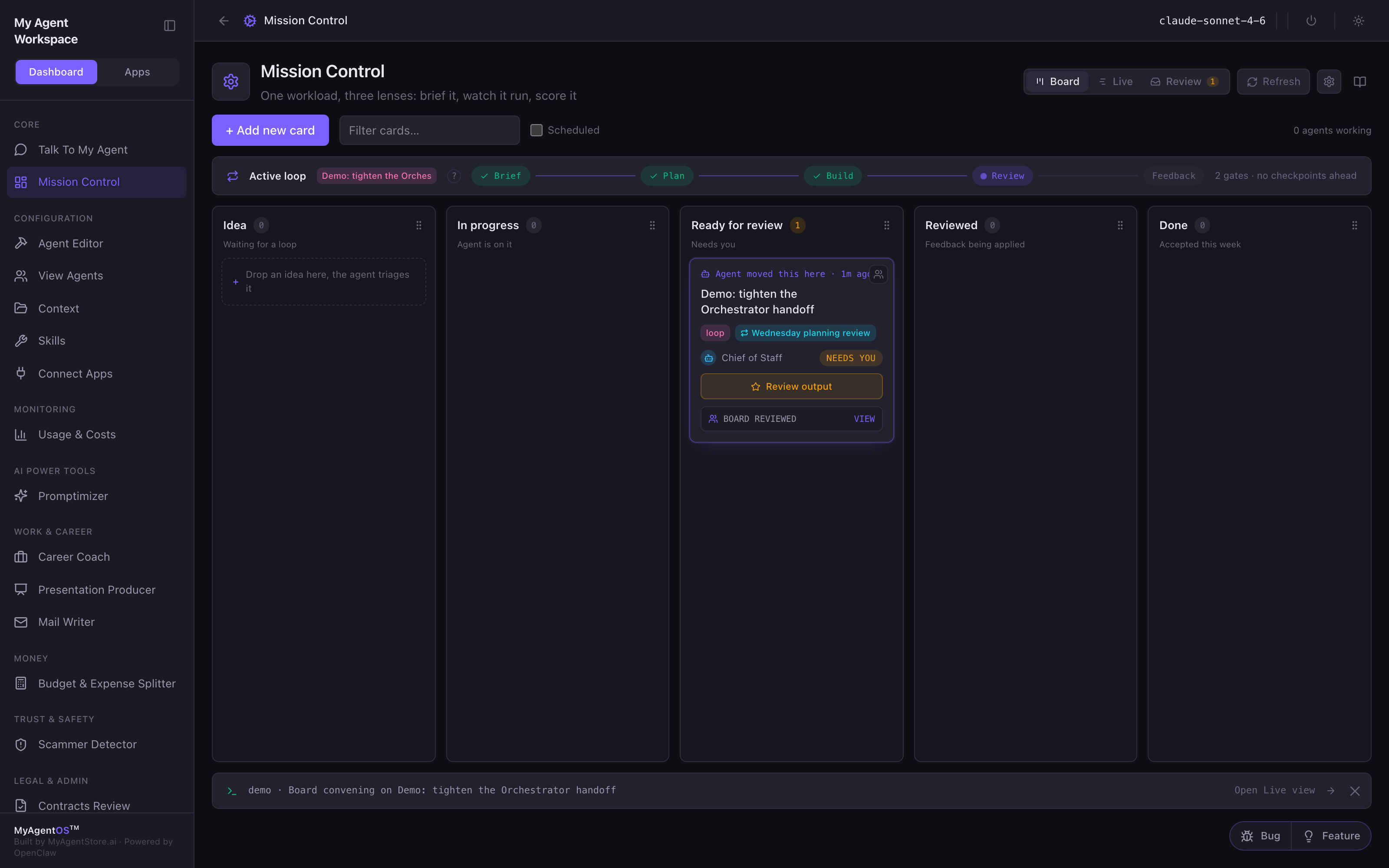
The three lenses
The page header offers three views of the same workload:
| Lens | What it shows | When you use it |
|---|---|---|
| Board | Five columns: Idea, In progress, Ready for review, Reviewed, Done. Each card is one loop of work. | Starting work, tracking state at a glance. |
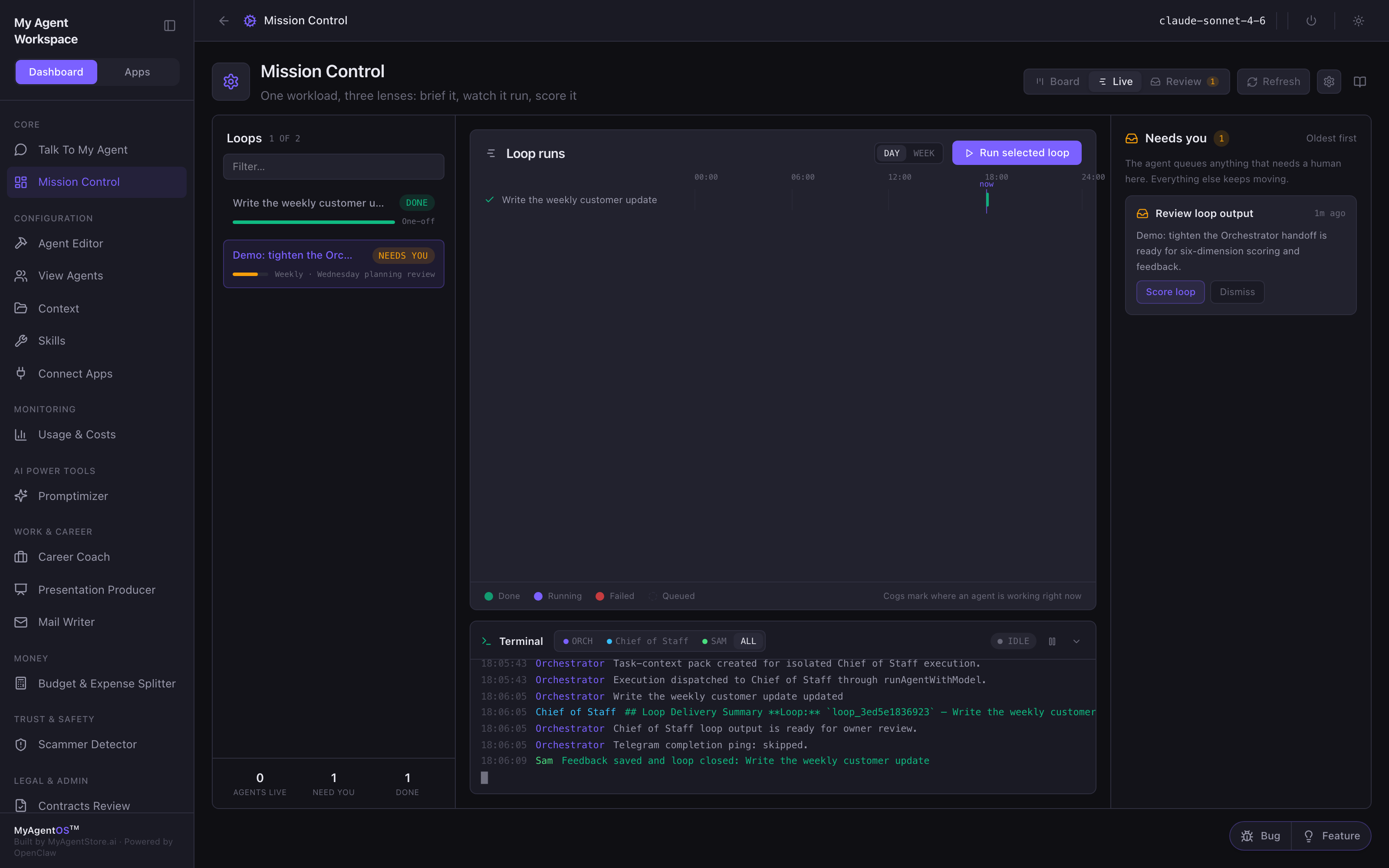
| Live | A run timeline, a terminal-style event strip, and the "Needs you" inbox with anything waiting on your decision. | While the agent is working, or to approve a held start. |
| Review | The agent's delivery against your brief, plus the feedback rail where you score the loop. | When a card reaches Ready for review. |
A card moves left to right: Idea → In progress → Ready for review → Reviewed → Done. The loop strip on each card tracks the same journey as Brief → Plan → Build → Review → Feedback.
Start your first loop
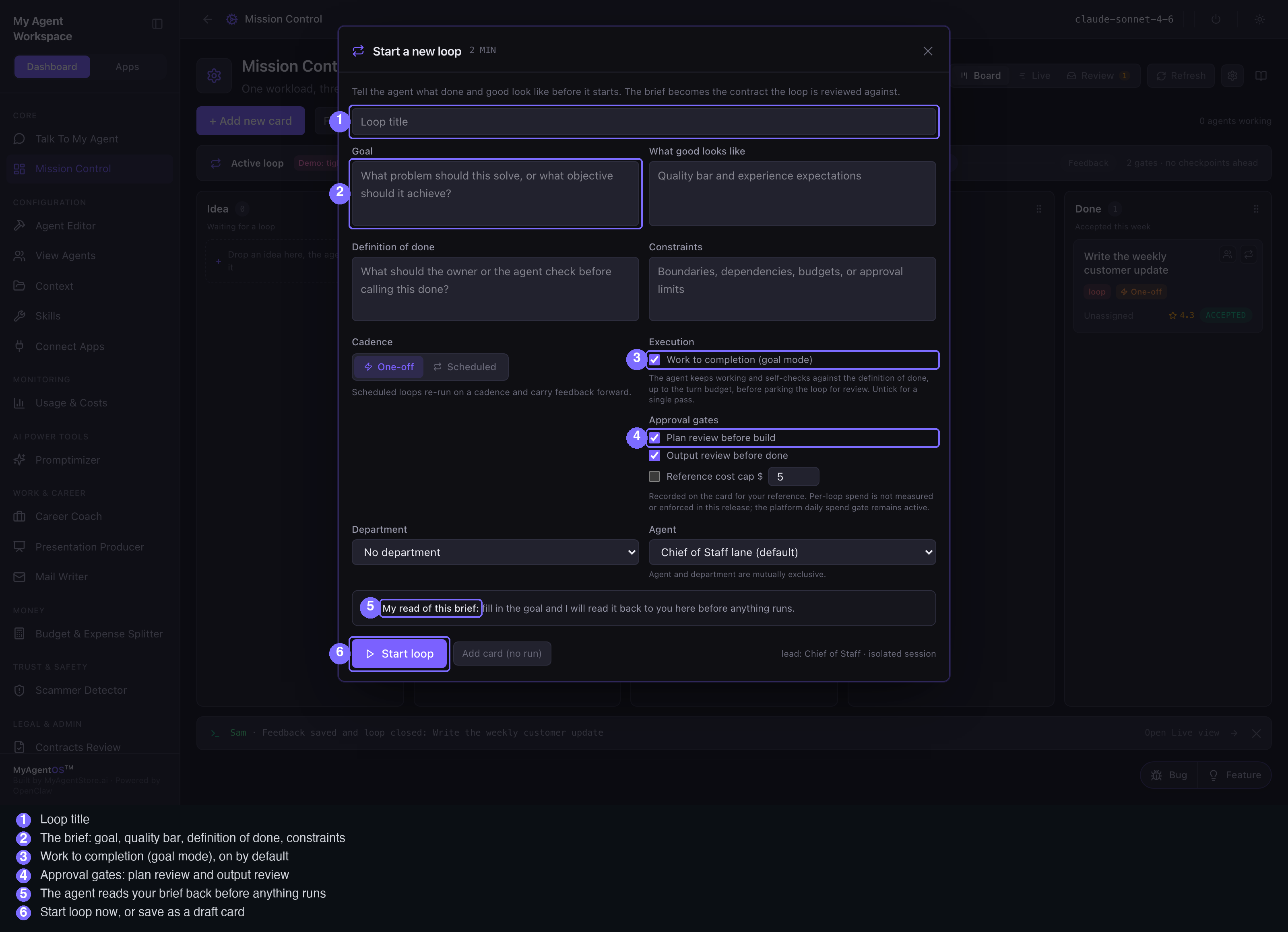
- Open Mission Control and click + Add new card (or drop an idea on the Idea column's "Drop an idea here" target).
- The Start a new loop form opens. It takes about two minutes, and the
brief you write becomes the contract the loop is reviewed against:
- Loop title: name the work.
- Goal: what problem this should solve.
- What good looks like: your quality bar.
- Definition of done: what you or the agent should check before calling it done.
- Constraints: boundaries, budgets, and approval limits.
- Watch the "My read of this brief" strip at the bottom of the form: the agent echoes back its understanding as you type, before anything runs.
- Choose your controls (all optional, sensible defaults):
- Cadence: One-off, or Scheduled to re-run on a cadence and carry feedback forward.
- Work to completion (goal mode): on by default. The agent keeps working and self-checks against your definition of done, up to a turn budget, before parking the loop for review. Untick it for a single pass.
- Approval gates: "Plan review before build" holds the loop until you approve its plan; "Output review before done" parks the output for your review. The reference cost cap is recorded on the card for your reference; the platform's daily spend gate stays active regardless.
- Department / Agent: hand the loop to a department or a single agent. They are mutually exclusive; leave both empty to keep it in the Chief of Staff lane.
- Click Start loop to run now, or Add card (no run) to save it to Idea as a draft. Draft cards are never picked up automatically; the board sweep skips them until you start them yourself.
While it runs
- The board shows the card in In progress with the agents-working counter ticking, and the card's loop strip lights up Build.
- The Live lens shows the run on the timeline and streams events into the terminal strip.
- Because Plan review before build is ticked by default, a new loop first holds in the "Needs you" inbox with the agent's read-back of your brief; nothing builds until you click Approve and run (or Dismiss). Untick the gate at intake if you want loops to build without the pause.
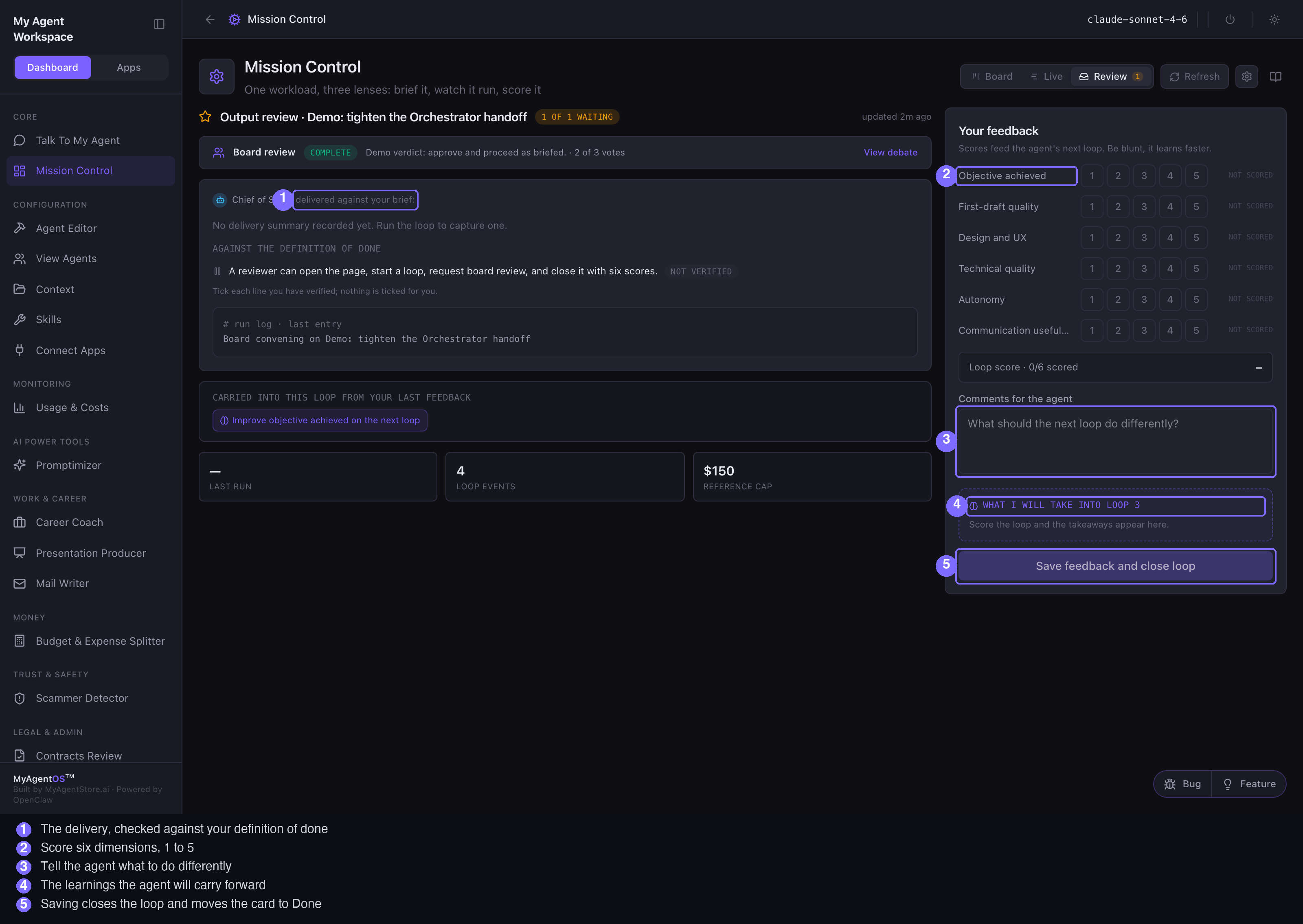
Review and score
When the agent parks its work, the card lands in Ready for review with a NEEDS YOU pill.
- Click Review output on the card, then Open full review (or switch to the Review lens directly).
- Read the delivery: what the agent produced, checked against your definition of done, with the run log underneath.
- Score the loop on the feedback rail: six dimensions (Objective achieved, First-draft quality, Design and UX, Technical quality, Autonomy, Communication usefulness), each 1 to 5. You need at least one score to save; scoring all six gives the agent the most to learn from.
- Add a comment: "What should the next loop do differently?"
- The "What I will take into loop 2" panel shows, live, the learnings the agent will carry forward, derived from your weakest scores and comments.
- Click Save feedback and close loop. The card moves to Done with its score and an ACCEPTED chip; the learnings are queued for the next loop.
Board reviews (a second opinion)
From a card's actions menu (the people icon) you can request a board review: a panel of advisor agents convenes asynchronously and returns a verdict, shown on the card as a BOARD CONVENING then BOARD REVIEWED chip. Open it to read the debate. A board review is advisory; it never moves the card. It is separate from your six-score review, which is the only path to Done.
Everyday card handling
- Open a card to edit any part of the brief, toggle goal mode, reassign, or move it between columns with the Move to buttons.
- Drag cards between columns on the board; keyboard users can pick up a card with the space bar and move it with the arrow keys.
- Filter cards with the filter box; tick Scheduled to see only scheduled loops.
- Repeat loop re-runs a finished card, carrying its feedback forward.
- Delete (in the card detail, behind a warning) removes the card and its loop history; files written by past runs stay on disk.
Limits and FAQ
Does the agent run on my machine? Yes: loops execute through your local agent runtime in an isolated session, using the model configured for the lane (visible in the top bar).
What does a loop cost? Whatever the underlying model calls cost. The cost cap field on the intake form is a reference annotation on the card, not an enforced limit in this release; the platform's daily spend gate remains active.
Can a loop close itself? No. Cards never auto-close: your review score is the only way a card reaches Done.
How many turns does goal mode use? Up to the configured turn budget (default 5) before the loop parks for your review, whether or not the agent believes it is finished.
What happens to my feedback? Scores and comments are stored with the card, derive a learning from the weakest dimension, and are injected into the brief of the next loop (repeat or scheduled re-run).
Known issues are tracked in the bug ledger; at the time of writing the most visible one is cosmetic: board events are attributed to a default operator name rather than your own (BUG-MOD-20260717-001).