Talk To My Agent
Your direct line to your Chief of Staff agent: multiple chat topics, file attachments, voice in and out, and a full export of any conversation.
Talk To My Agent is the chat surface of MyAgentOS. You send an instruction, your agent runs it on the model you connected, and the reply lands in the thread. Every topic keeps its own history, so a conversation about this week's plan does not get tangled up with one about a supplier contract.
Two things people use it for on day one:
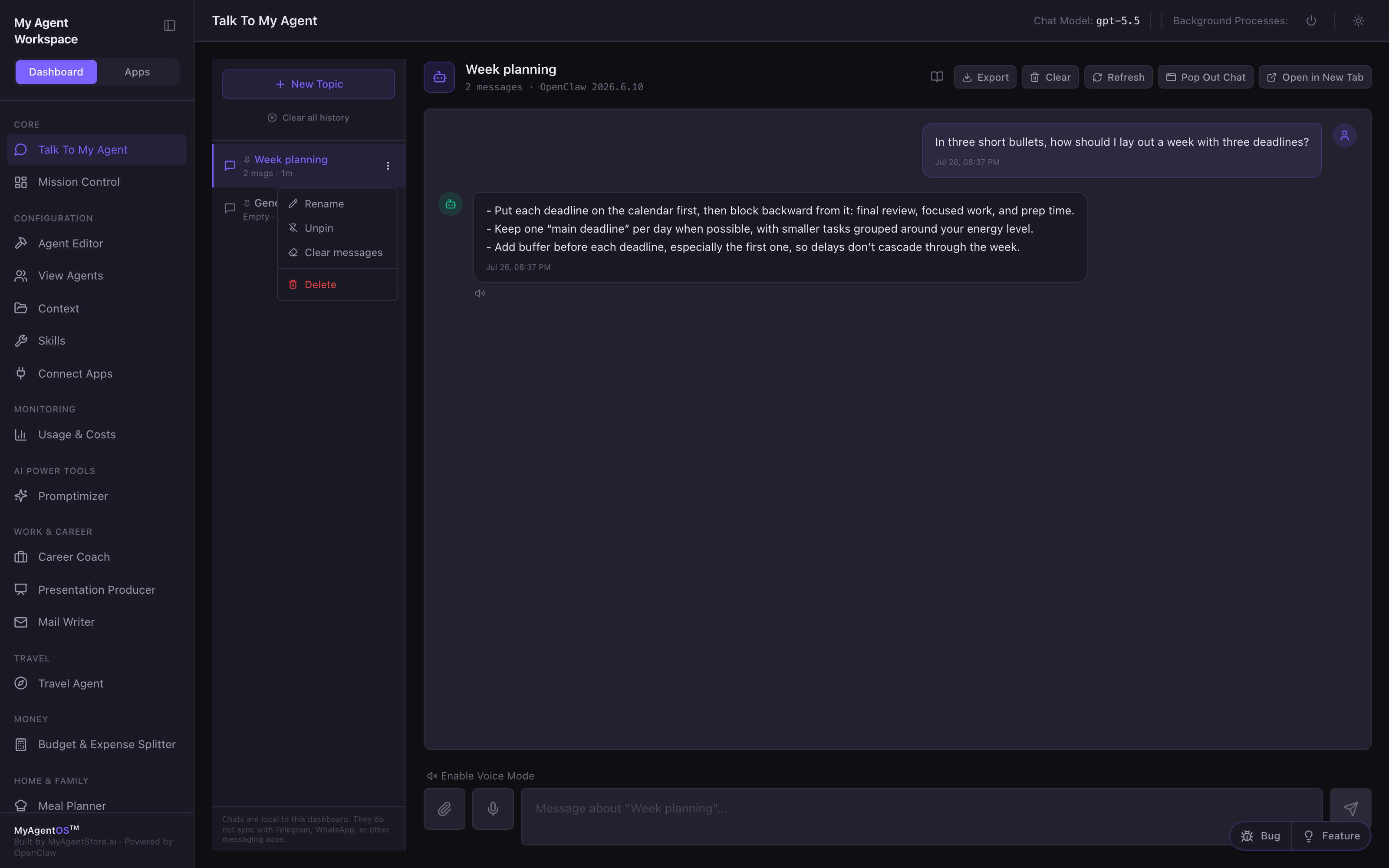
- Thinking out loud: "In three short bullets, how should I lay out a week with three deadlines?" and getting an answer you can act on rather than a lecture.
- Working from a document: attach a brief or a set of notes, then ask for a summary, a reply, or the three questions you have not thought of yet.
Who it is for: everyone, every day. It is the fastest route to your agent and the one surface you will keep open.
Where to find it: the sidebar, under Core: Talk To My Agent
(/call-agent).
Watch first: talk-to-my-agent.mp4 (captions toggleable in your player, or load talk-to-my-agent.srt). The screen is a real recording of the product; the narration is an AI-generated voice.
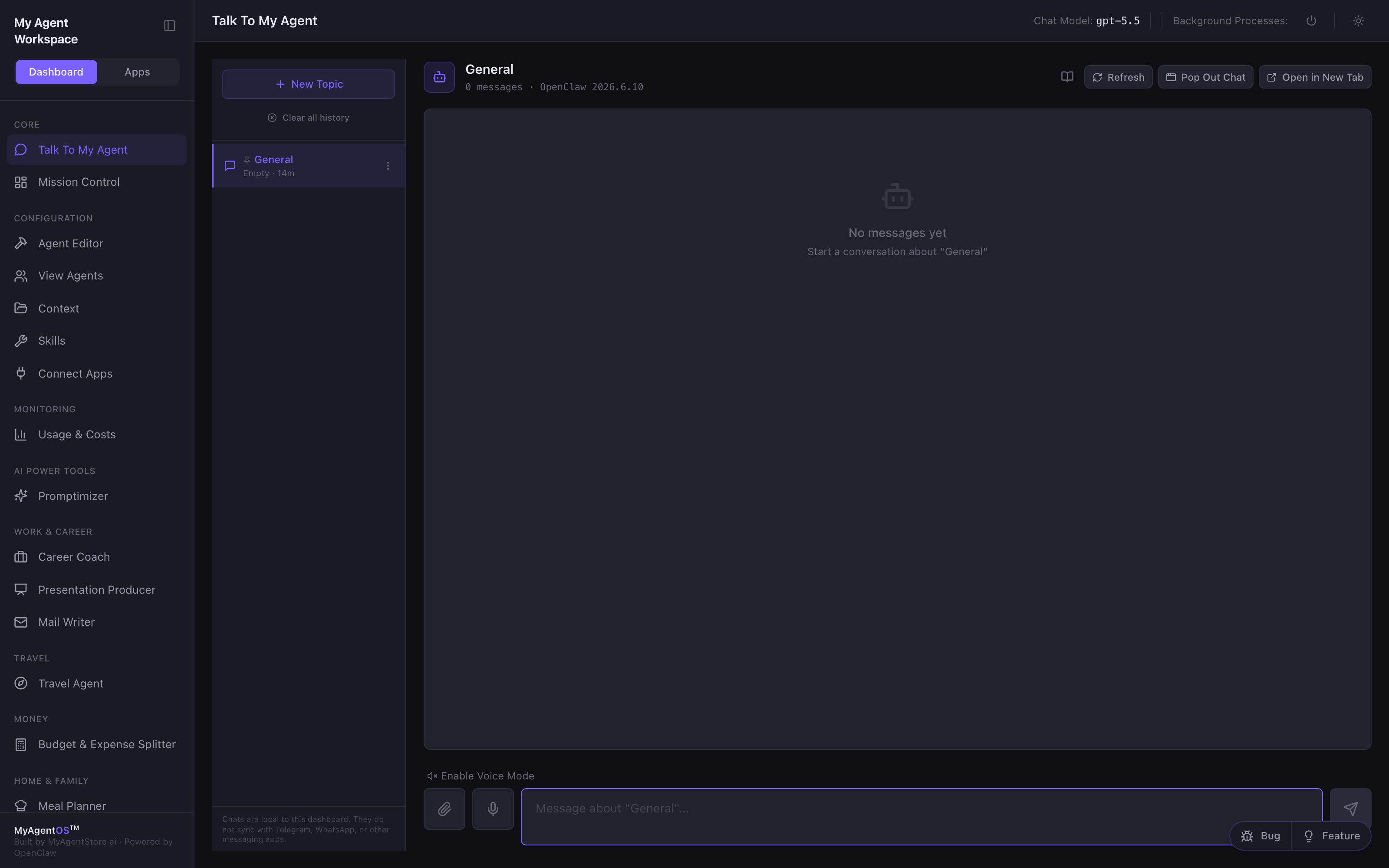
Your first message
A new install opens on a single topic called General with nothing in it. Type into the message box at the bottom and select the send arrow (or press Enter; Shift+Enter gives you a new line without sending).
While your agent works, the thread shows Thinking.... After a few seconds it starts counting, and past that it reminds you that long answers can take a minute. That wait is the model doing the work, not the dashboard hanging.
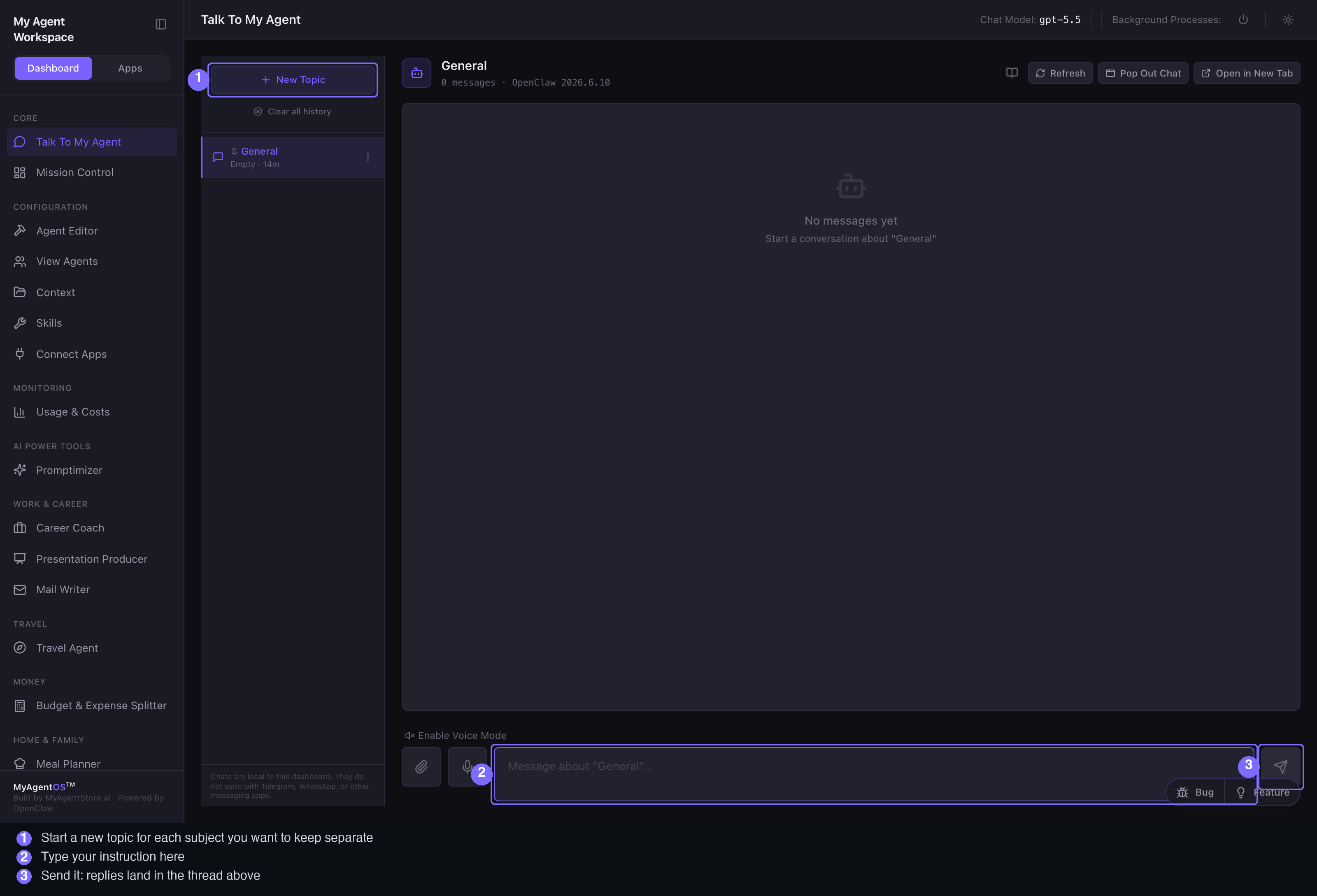
Topics
Select New Topic, give it a name, and press Enter. Each topic is a separate conversation with its own history, and the subtitle under each one tells you how many messages it holds and when it was last touched.
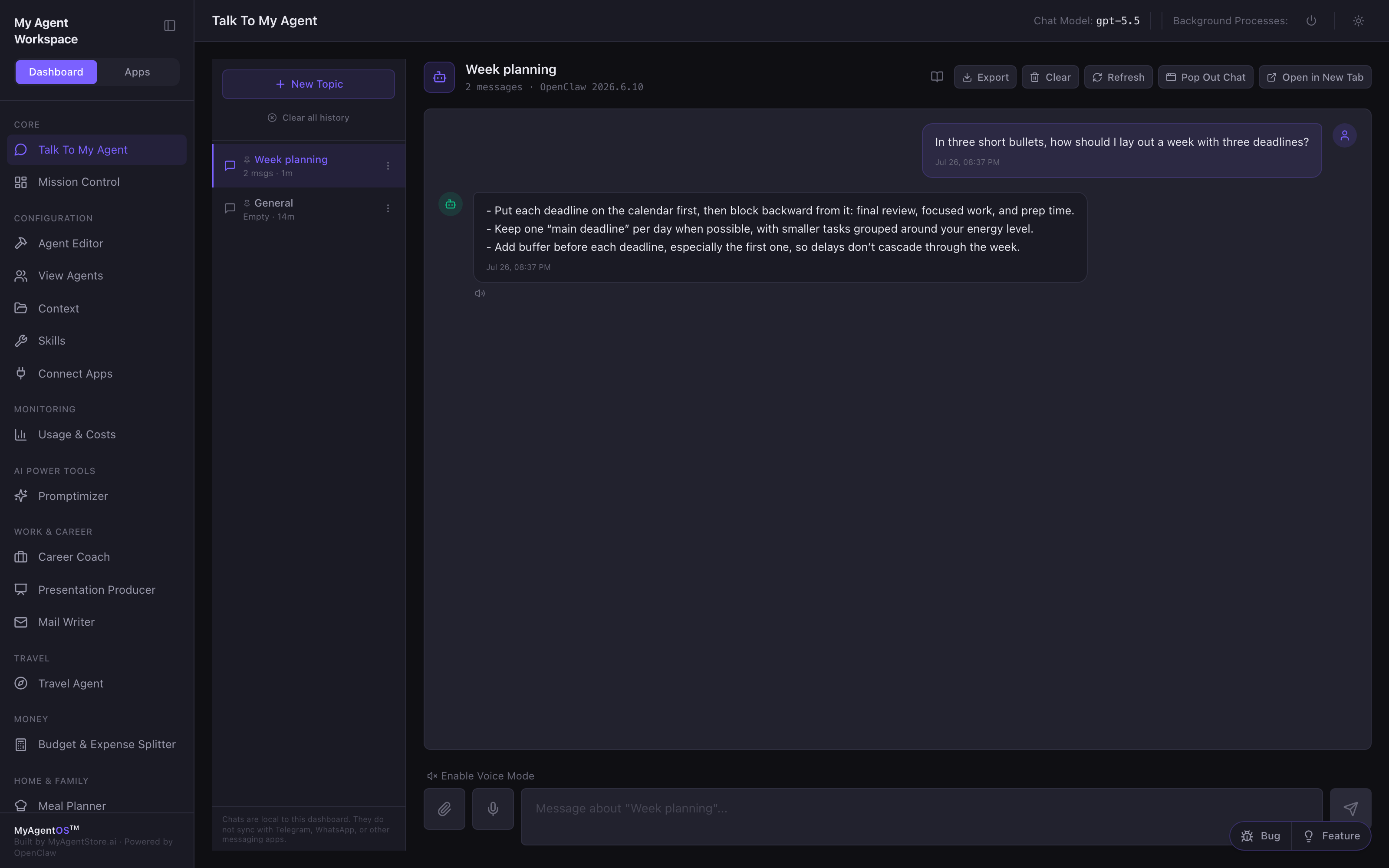
The three-dot menu on any topic gives you:
- Rename: change the title without losing the history.
- Pin to top: keep the topic you use most at the top of the list.
- Clear messages: empty the thread but keep the topic.
- Delete: remove the topic entirely (available once you have more than one).
Clear all history at the top of the list removes every topic at once. Both deletions ask for confirmation first.
Attachments, voice, and export
- Attach files with the paperclip: up to ten files per message (PDF, Word, text, and images). Send the rest in a follow-up message.
- Speak instead of typing with the microphone button, and turn on Enable Voice Mode if you want replies read back to you. Each assistant reply also carries its own speaker button, so you can have a single answer read aloud without switching voice mode on.
- Export writes the whole conversation out as Markdown, which is the format to keep if you want the thread outside the dashboard.
- Pop Out Chat opens the conversation in a small separate window and Open in New Tab gives it a full browser tab, both useful when you want the chat beside another application.
Limits and FAQ
Where do these chats live? In this dashboard only. The note at the foot of the topic list says it plainly: chats here do not sync with Telegram, WhatsApp, or other messaging apps. If you also talk to your agent through one of those channels, those conversations are separate.
Which agent am I talking to? Your main agent, called Chief of Staff until you rename it. You can change the name under Settings, in Naming & Identity.
Which model answers? The one set as your Chat Model in Settings. It is shown in the top bar of every page, and it can be a faster or cheaper model than the one your agents use for longer workflow tasks.
Why did my reply take so long? Long or complex answers take longer, and the first message in a conversation carries more context than later ones. The counter in the Thinking bubble tells you how long the current request has been running.
Does clearing one topic affect the others? No. Each topic keeps its own message history, and clearing or deleting one leaves the rest untouched.
Can I attach a document and ask about it? Yes, that is what the paperclip is for. For material you want available to your agents all the time rather than in one conversation, put it in Context instead.