Context
Your shared knowledge base: the documents your agents read when they need to know something about your work.
Context is a file browser for the material your agents can draw on. Upload the briefs, notes, research and reference documents you would otherwise have to explain twice, organise them into folders, and tag them to a project or to the agents they belong to.
Two things it is good for:
- A live account or project: a folder holding the kickoff notes, the pricing you agreed and the open questions, so any agent working on it starts informed.
- House standards: the way you want letters written, the checks a contract must pass, the tone your marketing uses.
Who it is for: anyone whose work has background. The difference between a general assistant and one that knows your business is mostly what is on this shelf.
Where to find it: the sidebar, under Configuration: Context
(/context).
Watch first: context.mp4 (captions toggleable in your player, or load context.srt). The screen is a real recording of the product; the narration is an AI-generated voice.
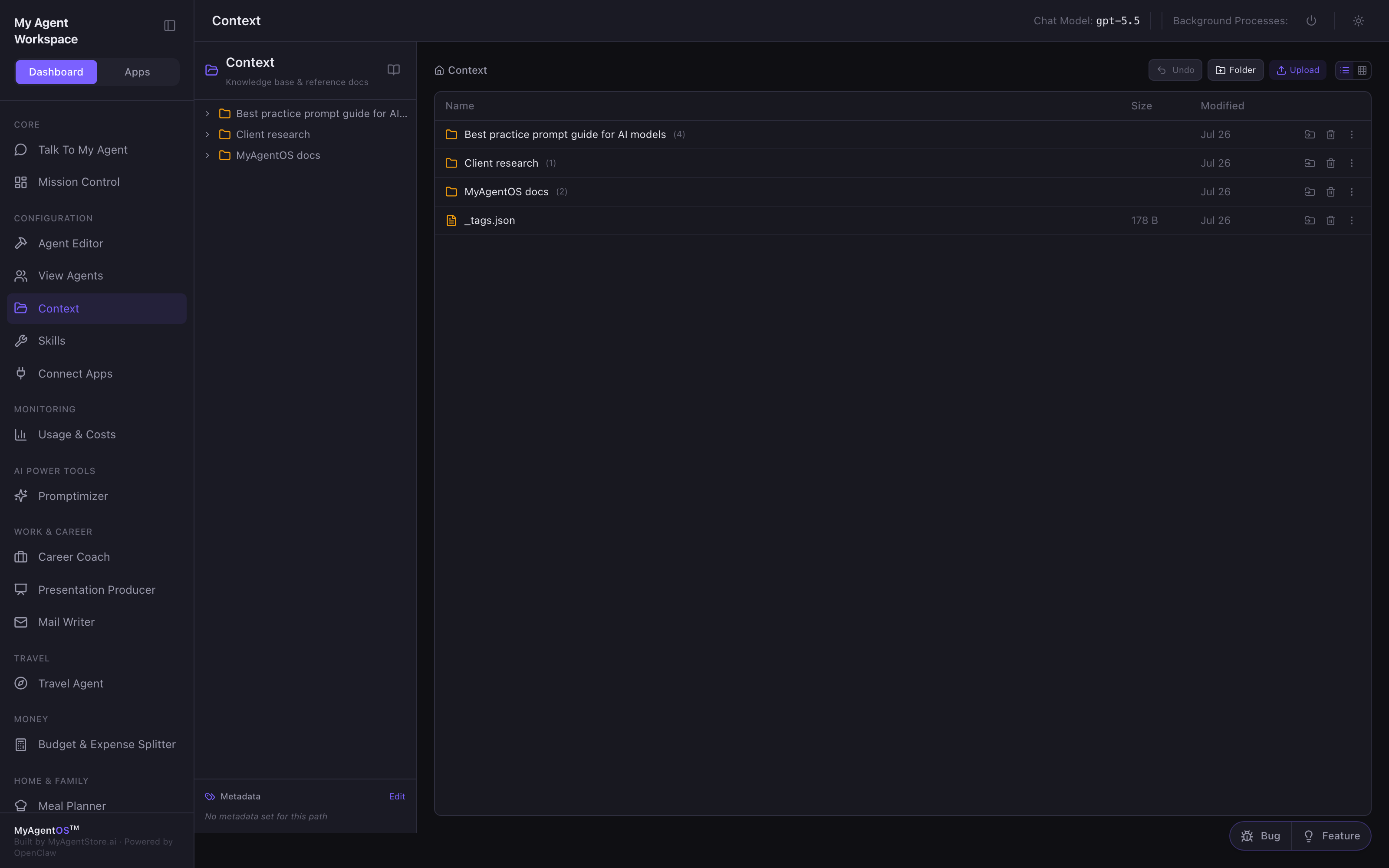
What is already there
A new install arrives with a small library: a set of prompting guides for the main AI models, and the MyAgentOS product documentation. Browse it with the folder tree on the left or the file list in the middle. Selecting a file opens a preview on the right, showing the file as your agents read it.
Adding your own
- Folder creates a new folder at the level you are viewing. Type a name and select Create. Double-click a folder to open it; the breadcrumb at the top tracks where you are.
- Upload opens the upload panel. Drag files onto it or browse for them, then confirm. Any file type is accepted.
- Undo reverses the last delete, rename or move.
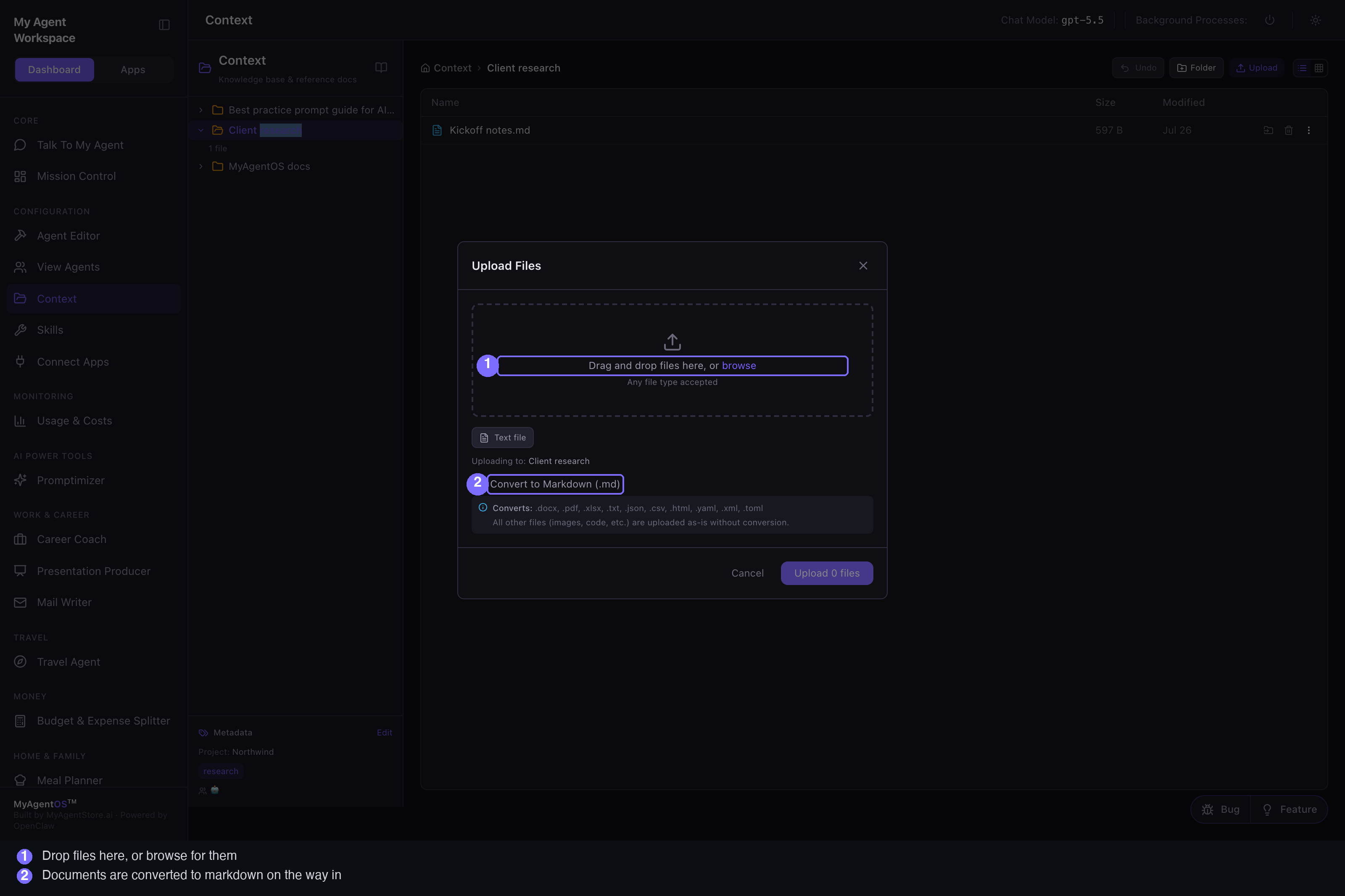
Convert to Markdown
The upload panel has Convert to Markdown (.md) switched on by default. Word documents, PDFs, spreadsheets, text, CSV, HTML, YAML, XML and TOML files are converted to Markdown as they are stored, because that is the form models read best. Everything else (images, code, and so on) is stored as it is.
The practical consequence: a file you upload as Kickoff notes.txt lands as
Kickoff notes.md. Switch the option off if you need the original format kept.
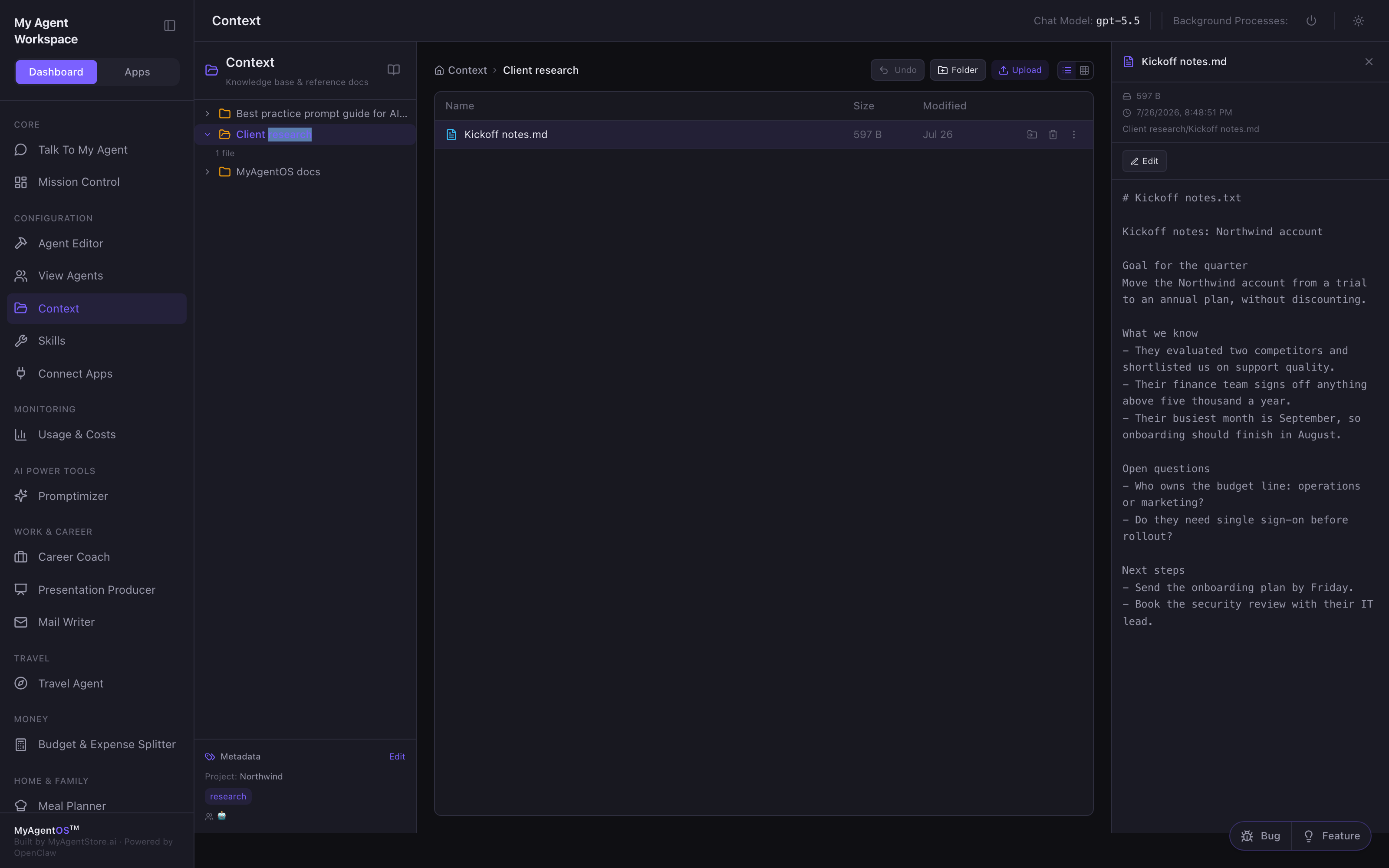
Metadata: project, tags, agents
The panel at the bottom left applies to whichever folder you are viewing. Select Edit and you can set:
- Project: a name that groups everything in this folder.
- Tags: free-text labels; type one and press Enter to add it.
- Linked Agents: the agents this material belongs to. Select an agent's chip to link it.
Select Save and the panel shows what you set. Tagged material is prioritised when those agents work on something related, which is why this panel is worth the thirty seconds it takes.
Limits and FAQ
Where do these files actually live? In your own workspace, under a context
folder, on your machine or your hosted instance. Nothing here is sent anywhere
except to the model when an agent needs it.
How do agents use it? They consider material that is relevant to what you have asked, and they prioritise files tagged to them or to the project in hand. It is context, not a command: putting a document here does not make an agent act on it unprompted.
Is there a size limit? Previews of very large files are truncated on screen (the preview says so when it happens). The file itself is stored whole.
Can I edit a file here? Yes. Open the preview and select Edit to change the contents in place.
Should I put a document here or attach it to a chat? Attach it in chat if it matters for one conversation. Put it in Context if it should be available to your agents from now on.