Connecting your AI
Sign in to the dashboard, then connect an AI provider so your agents have a model to run on.
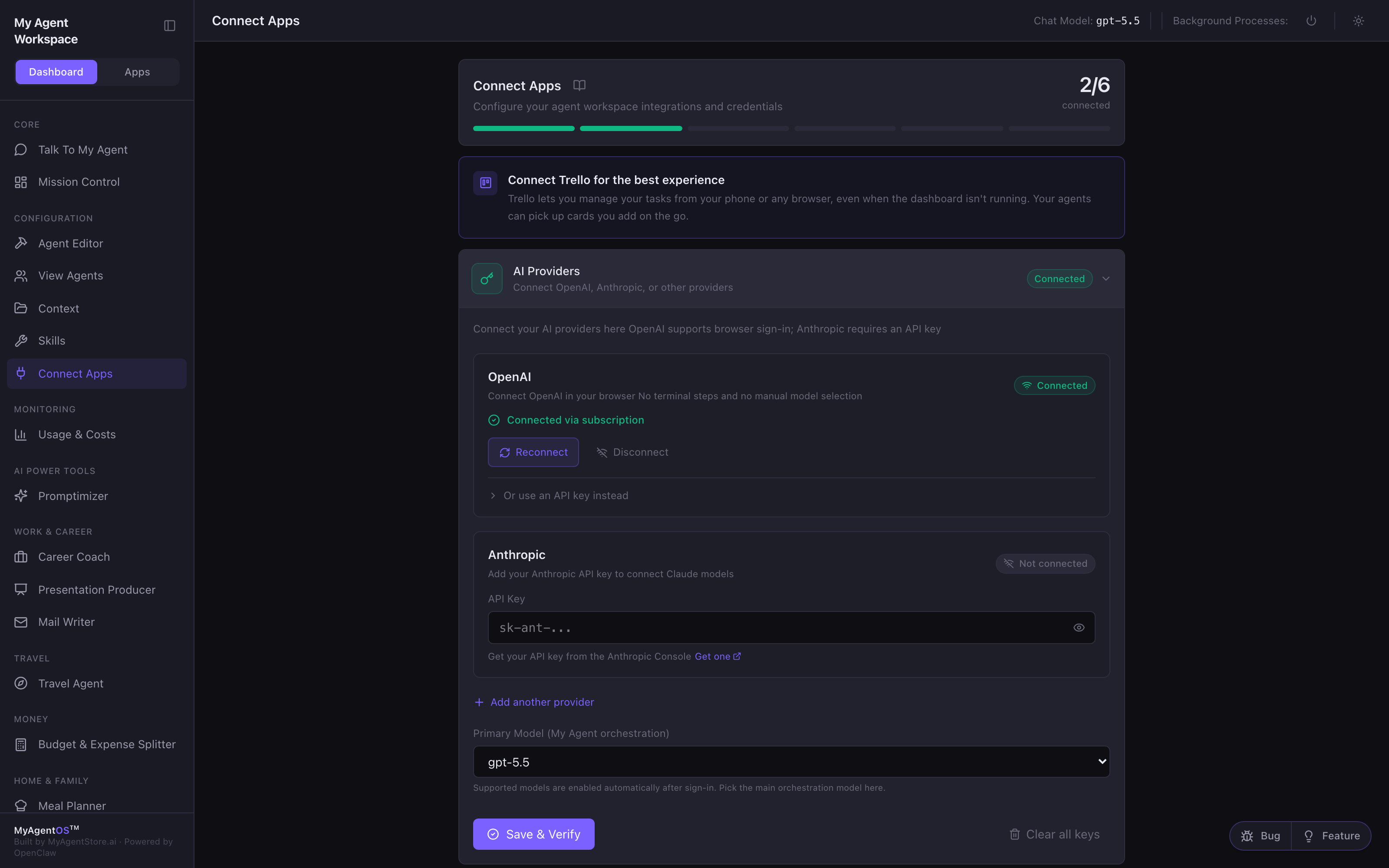
Every module in MyAgentOS runs on an AI model, so the first thing to do on a new install is connect a provider. It takes one connection: sign in with your ChatGPT account, or paste an API key. Once a provider is connected, the whole dashboard comes to life; until then you will see No provider connected in the top bar and modules cannot run.
What you connect here:
- Your ChatGPT subscription (recommended): sign in to OpenAI in your browser and your agents run on the Codex subscription you already pay for, with no metered API credit and no terminal steps.
- An API key: paste a key for Anthropic (Claude), OpenAI, or another provider. API keys are billed per token by the provider.
Who it is for: everyone, once, at the start. You connect a provider the first time you set up MyAgentOS, and again only if you change providers or a sign-in expires.
Where to find it: the sidebar, under Configuration: Connect Apps
(/setup), then the first section, AI Providers.
Watch first: connecting-your-ai.mp4 (captions toggleable in your player, or load connecting-your-ai.srt). The screen is a real recording of the product; the narration is an AI-generated voice.
Sign in
How you reach the dashboard depends on where it is running.
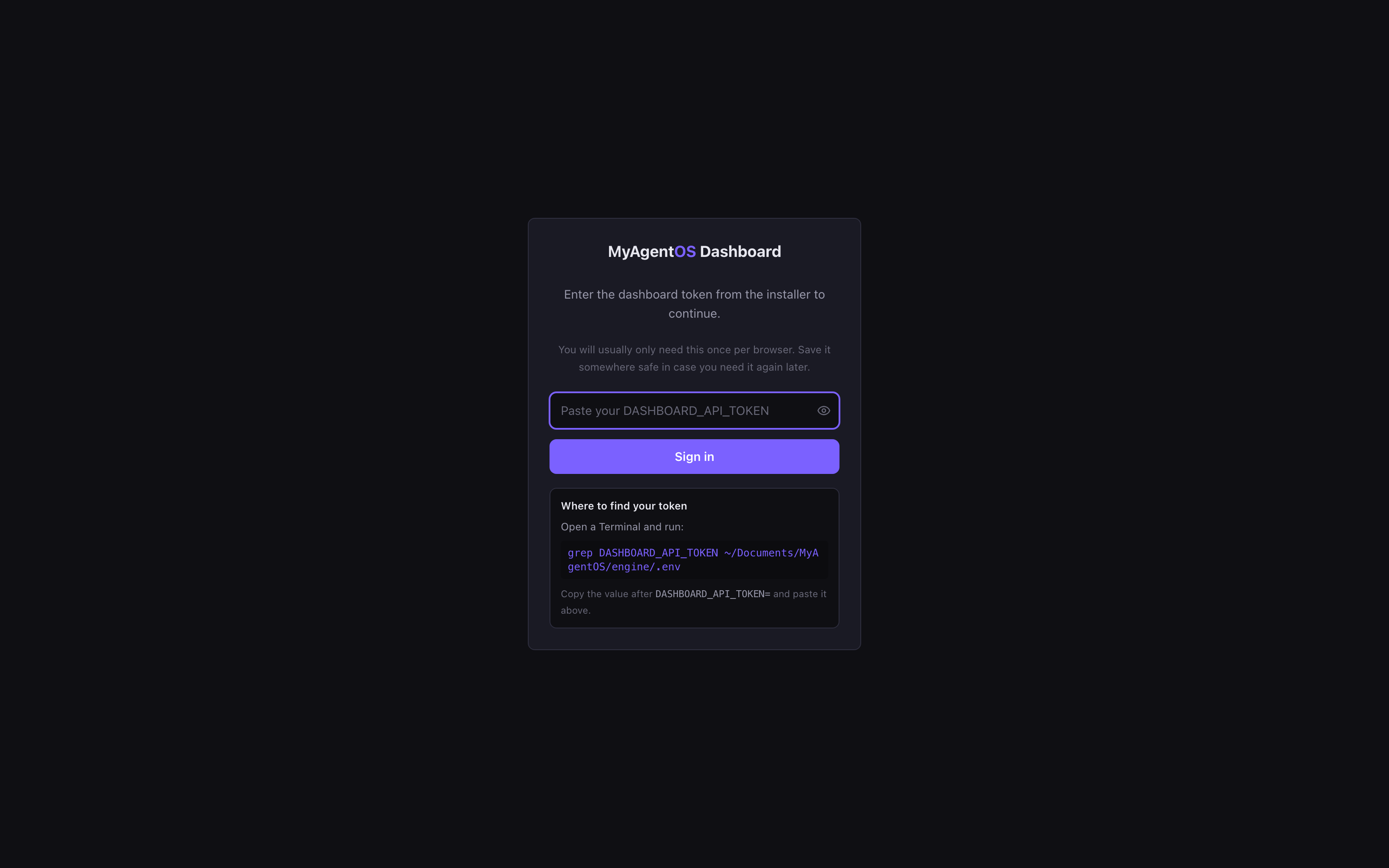
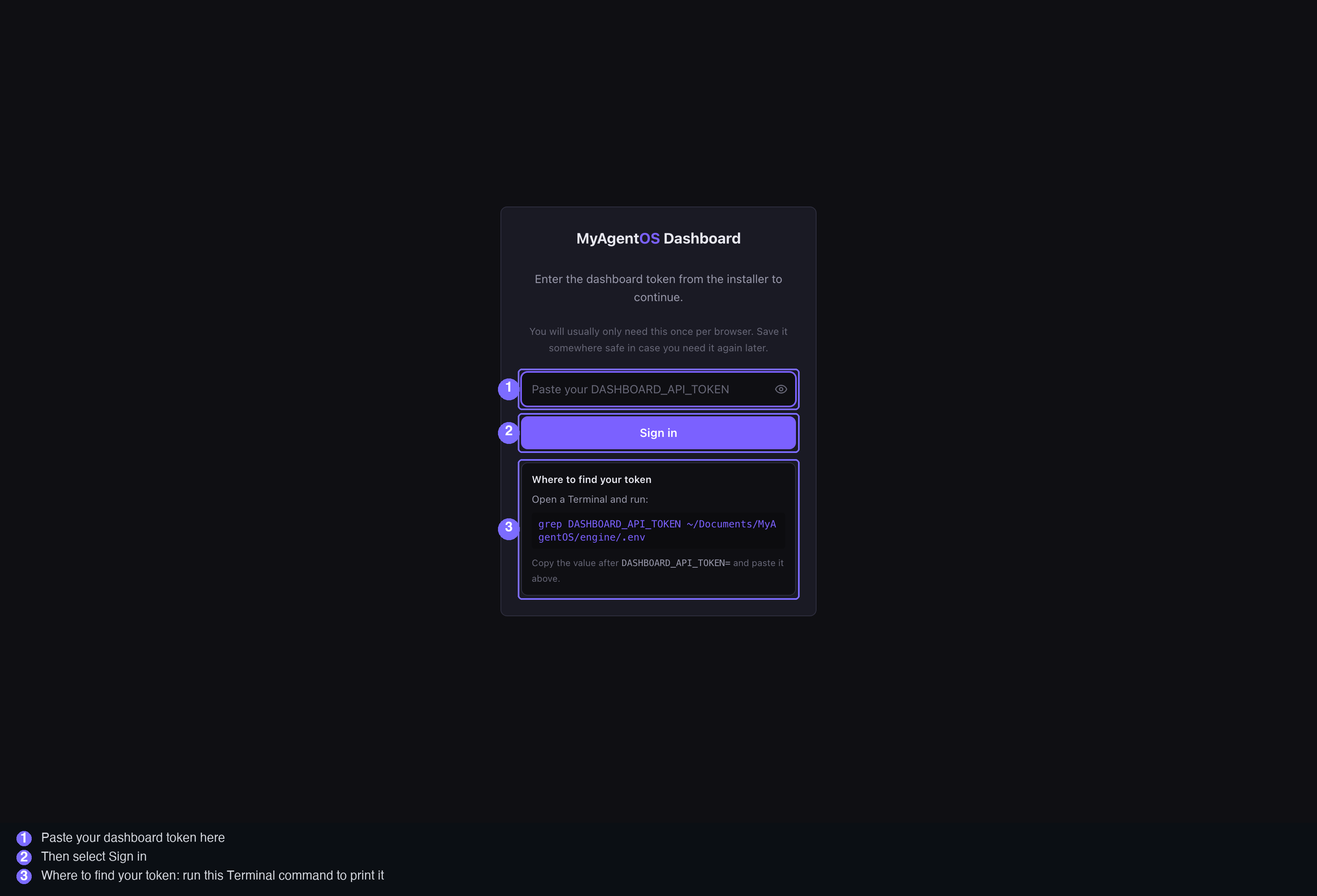
- On your own Mac: opening the dashboard on the same machine usually takes you straight in. If you open it from another device (your phone or another computer on your network), it asks for the dashboard token created by the installer: paste it and select Sign in. The screen tells you where to find it, and Getting your dashboard token below walks through the steps; you normally only need it once per browser.
- On the hosted version: you sign in with your account password. First-run hosted instances open a short Finish Hosted Setup wizard that walks you through connecting a provider with the same two routes below: sign in to OpenAI (Codex) with a device code, or connect Claude with a setup token or API key.
Getting your dashboard token (Mac)
When the sign-in screen asks for a token (opening from another device, or with the token prompt turned on), fetch the one the installer created:
- Open Terminal. Press Cmd+Space to open Spotlight, type
Terminal, and press Return. - Run the command the sign-in screen shows. Paste
grep DASHBOARD_API_TOKEN ~/Documents/MyAgentOS/engine/.envand press Return. - Paste the token in. Copy everything after
DASHBOARD_API_TOKEN=, paste it into the sign-in field, and select Sign in.
To skip the copy step, run
grep DASHBOARD_API_TOKEN ~/Documents/MyAgentOS/engine/.env | cut -d= -f2- | pbcopy
instead: it puts the token straight on the clipboard, ready to paste into the
field.
On your own Mac at localhost you are usually signed in automatically, so you
only need the token when you reach the dashboard from another device or browser.
The hosted version uses your account password rather than a token.
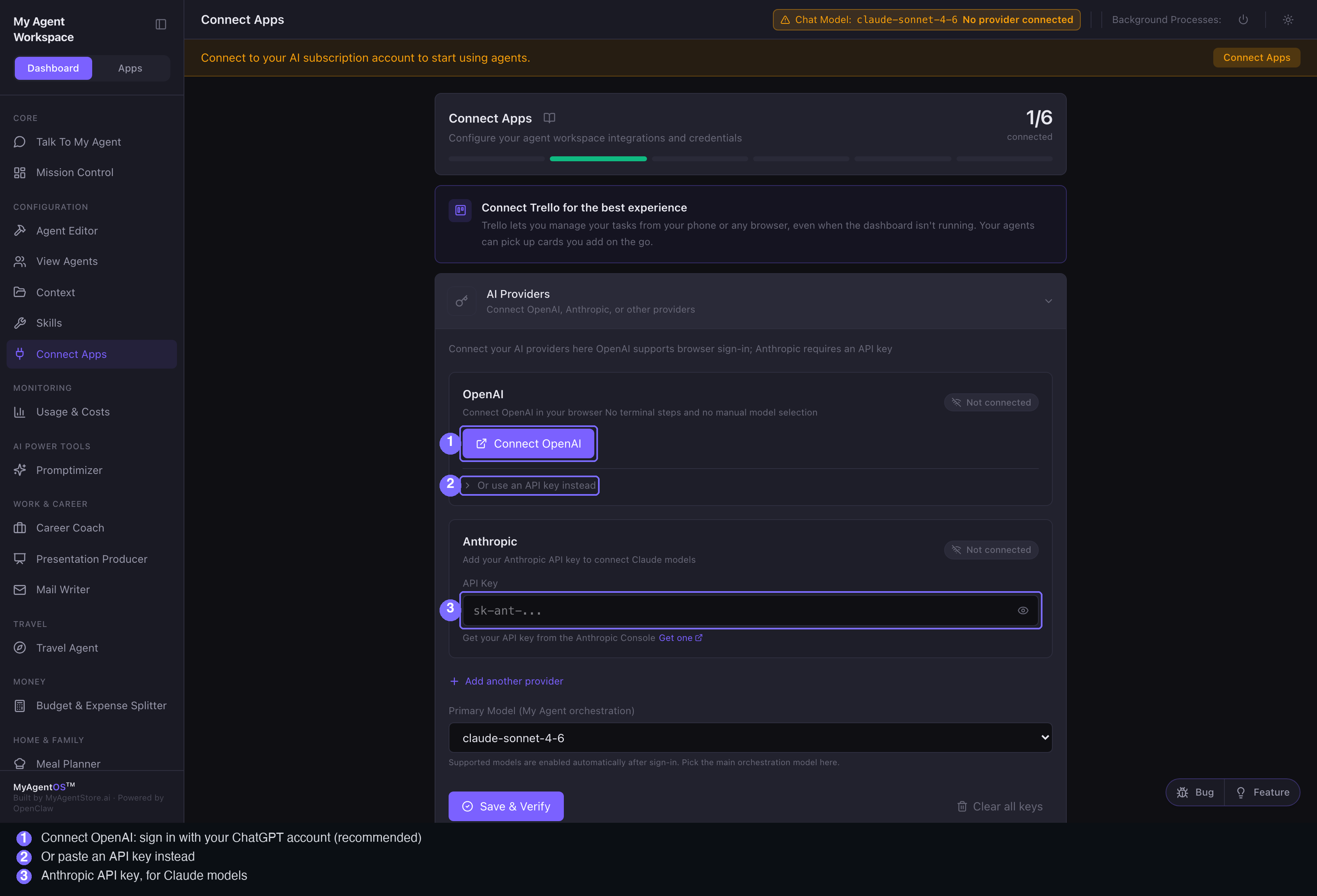
Once you are in, open Connect Apps from the sidebar and expand AI Providers. Nothing is connected yet, so both cards read Not connected.
Connect with your ChatGPT account (recommended)
In the OpenAI card, select Connect OpenAI. A sign-in panel appears and MyAgentOS starts a real OpenAI sign-in: open the sign-in page, authorise in your browser, and the connection completes on its own. There are no terminal steps and no model list to pick from; supported models are enabled automatically.
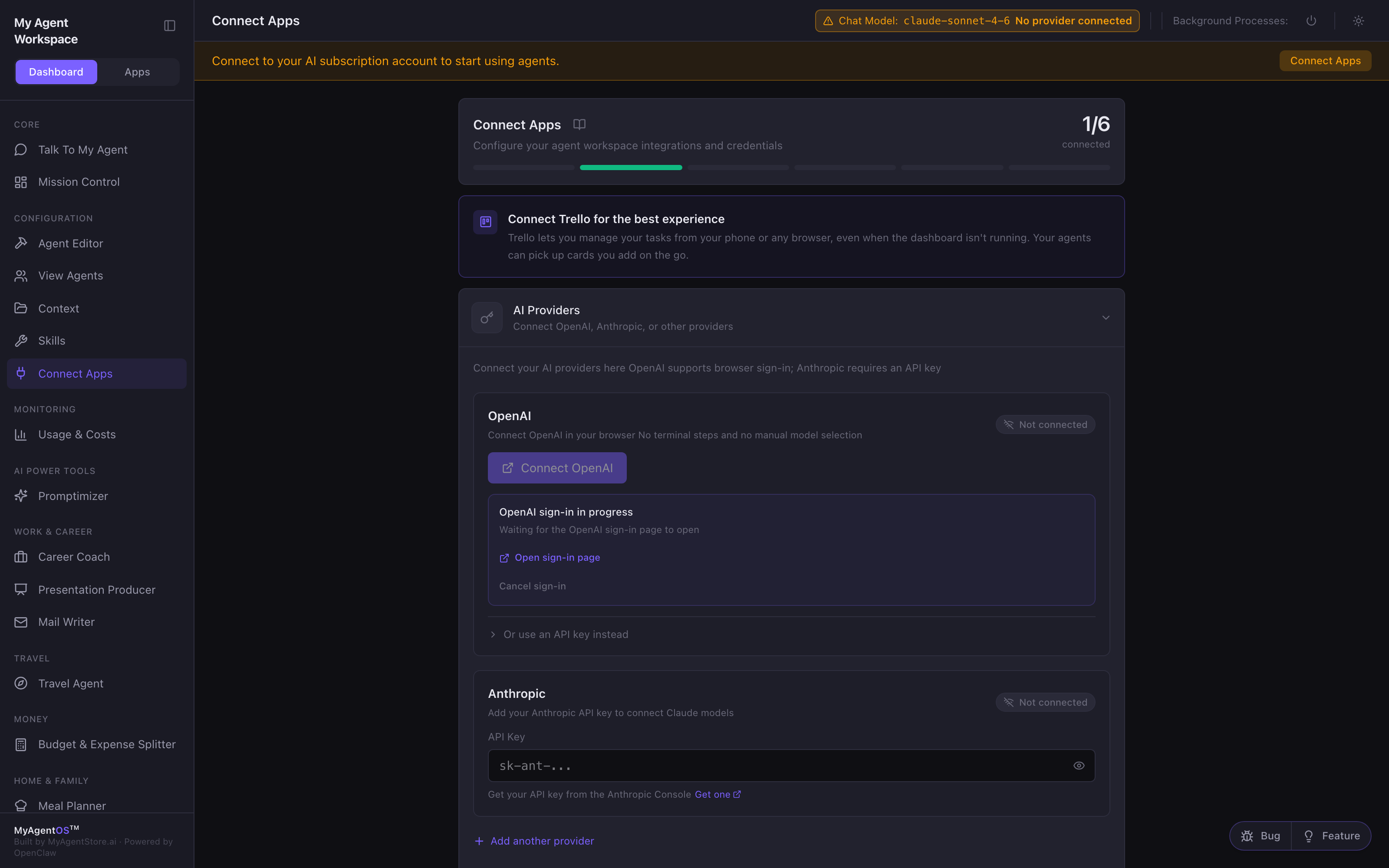
This is the recommended route because your agents then run on the ChatGPT/Codex subscription you already pay for rather than on metered API credit. It works the same way on the Mac app and on the hosted version: on the Mac the browser sign-in completes locally; on hosted you authorise a short device code in your own browser.
Connect with an API key
Prefer Claude, or a provider that is not OpenAI? Paste an API key instead.
- Anthropic (Claude): the Anthropic card takes an API key only. Paste your
key in the API Key field (it starts
sk-ant-); get one from the Anthropic Console. This is the route for Claude models. - OpenAI by key: if you would rather use an OpenAI platform key than sign in,
expand Or use an API key instead on the OpenAI card and paste a key that
starts
sk-. - Other providers: select Add another provider to add Google AI (Gemini), Mistral AI, DeepSeek, Cohere, Groq, or xAI (Grok), each with its own API key.
After pasting a key, select Save & Verify. Keys are billed per token by the provider, not by MyAgentOS.
Which should I choose
- A ChatGPT subscription (OpenAI sign-in) is the simplest and, for most
people, the cheapest: usage is covered by your existing OpenAI subscription plan
rather than charged per token. Subscription-backed models carry the
openai-codex/prefix. - An API key gives you any provider (Claude in particular) and pay-as-you-go
billing per token. API-key models carry the plain
openai/,anthropic/, and similar prefixes.
The Usage & Costs page (in the sidebar under Monitoring) makes the difference plain: if you signed in with an OpenAI subscription, it notes that your usage is limited to your OpenAI subscription plan; if you use API keys, it meters your token usage and estimated cost by execution path, so you can keep an eye on spend and set a daily cap.
Limits and FAQ
Where are my keys stored? Locally, by the product, on your own machine (or on your hosted instance). The dashboard shows only whether a provider is connected; it never displays the key or your account email back to you. Key fields are masked as you type.
What does "No provider connected" mean? It is the top-bar warning shown until you connect at least one provider. Modules need a model to run, so connect a provider first; the warning clears the moment one is connected.
How do I disconnect or switch? A connected provider shows Reconnect and Disconnect. Reconnect runs the sign-in again (useful if a session expires); Disconnect removes the saved credential. Disconnecting an OpenAI subscription also signs out the shared Codex login on that machine. You can reconnect at any time.
Do I need a provider for every module? No. One connected provider powers all the modules. Add a second provider only if you want a specific model (for example, an Anthropic key for Claude alongside a ChatGPT subscription).
Which model runs my agents? The Primary Model selector on this page sets the main orchestration model; supported models are enabled automatically after you connect. The model in use is shown in the top bar.