Promptimizer
Paste a rough prompt, get back a structured one that actually works.
The Promptimizer takes a prompt you have written in a hurry and rebuilds it into something a model can follow: the real request lifted to the top, the missing context flagged, and the output format and tone pinned down. You paste on the left, you copy the optimised version from the right. Nothing about your own prompt is thrown away; it is reorganised and sharpened.
What you might use it for:
- An email to your landlord about the broken heating, firm but polite: you type the gist, the Promptimizer turns it into a prompt that names the details worth including and the tone to hold.
- A code-review prompt for Claude: start from the Code review template, drop in your files and focus, and get back a prompt that asks for severity, file, line and suggestion in a fixed shape.
Who it is for: anyone who writes prompts and would rather not relearn prompt engineering every time. You bring the intent; the Promptimizer supplies the structure.
Where to find it: the sidebar, under AI Power Tools: Promptimizer
(/promptimizer).
Watch first: promptimizer.mp4 (captions toggleable in your player, or load promptimizer.srt). The screen is a real recording of the product; the narration is an AI-generated voice.
Optimise a prompt
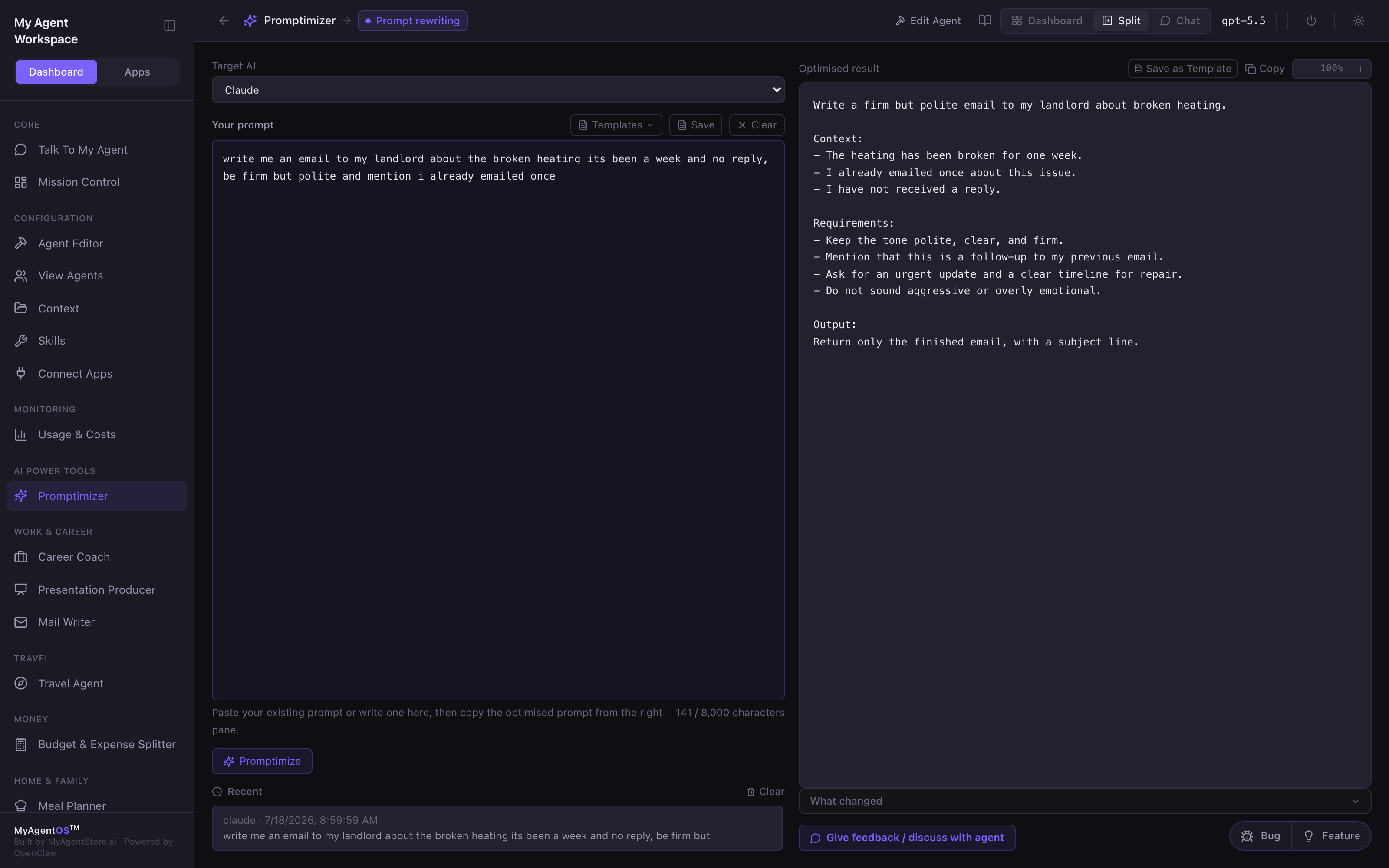
- Open Promptimizer. It starts in Split view: your prompt on the left, the optimised result on the right.
- Choose your Target AI (Claude, GPT, Gemini, or General). The rewrite is tuned to that model's conventions.
- Type or paste your prompt into Your prompt. A rough, one-line brief is fine; that is the point. The character counter warns you before you reach the 8,000-character limit.
- Click Promptimize. The optimised prompt appears on the right.
- Click Copy to take it straight into your model of choice, or Save as Template to reuse the structure later.
See what changed, and why
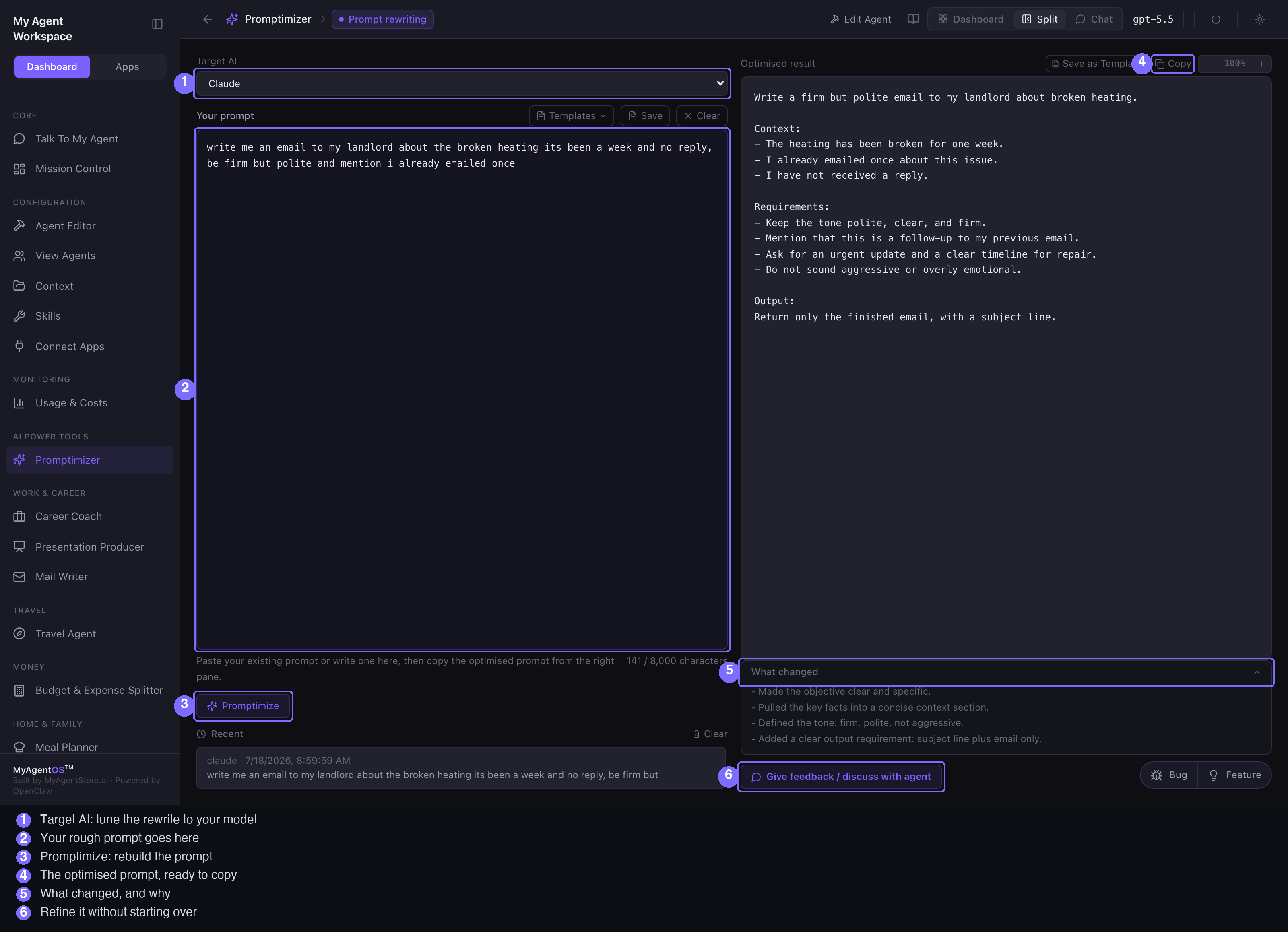
Under the optimised prompt, open What changed. The Promptimizer lists the edits it made and the reasoning behind each one: which context it added, where it made the desired outcome concrete, and what format or length constraints it introduced. It is a short lesson in why the new prompt is stronger, not just a rewrite.
Refine it without starting over
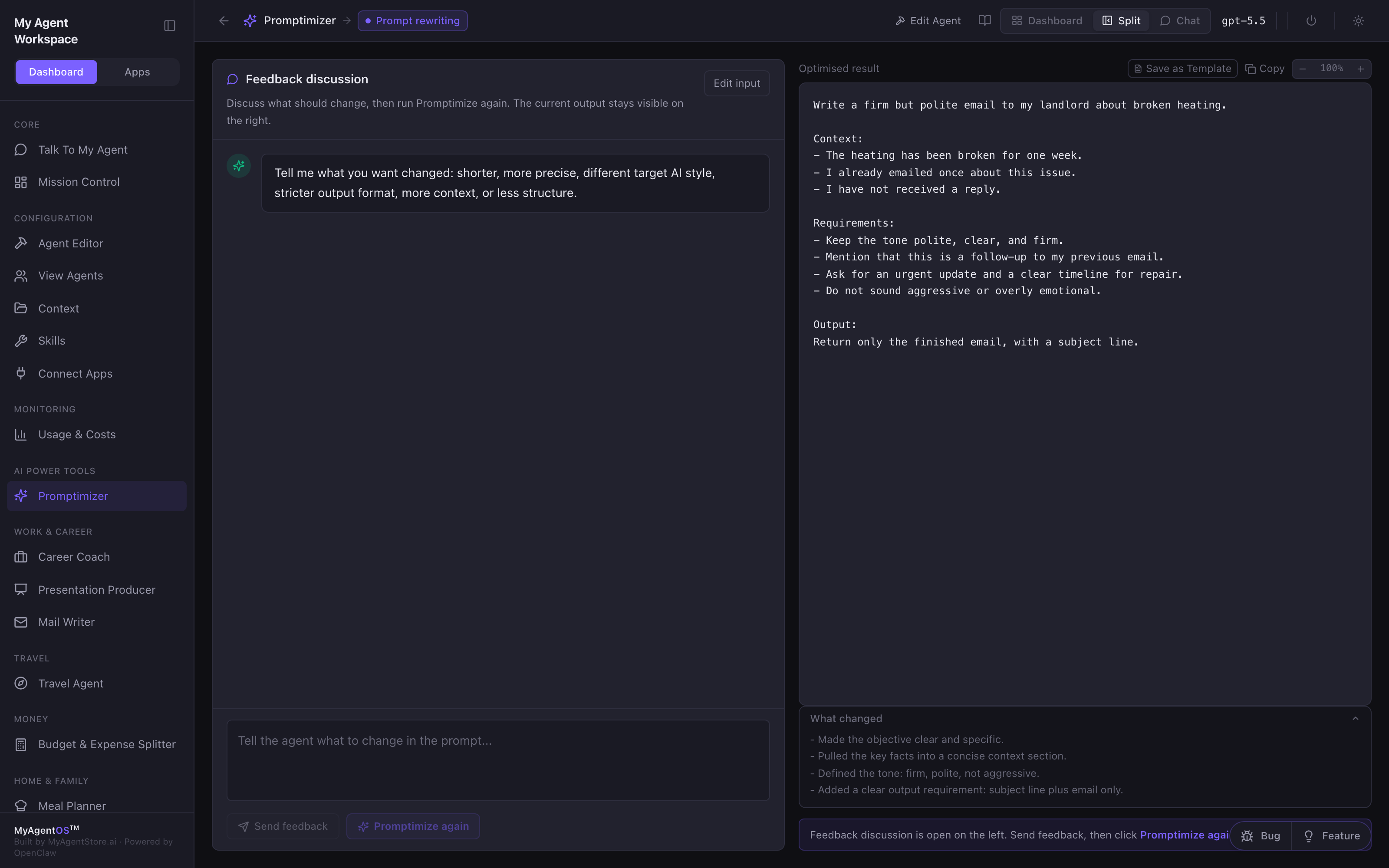
If the result is close but not right, click Give feedback / discuss with agent. A discussion panel opens on the left with the current output still visible on the right. Tell the agent what to change (shorter, stricter format, a different tone, more context), and it replies with guidance or a clarifying question. When you are ready, click Promptimize again to regenerate using everything you discussed. Your last three prompts are kept under Recent on the left so you can step back to an earlier version.
Three ways to work
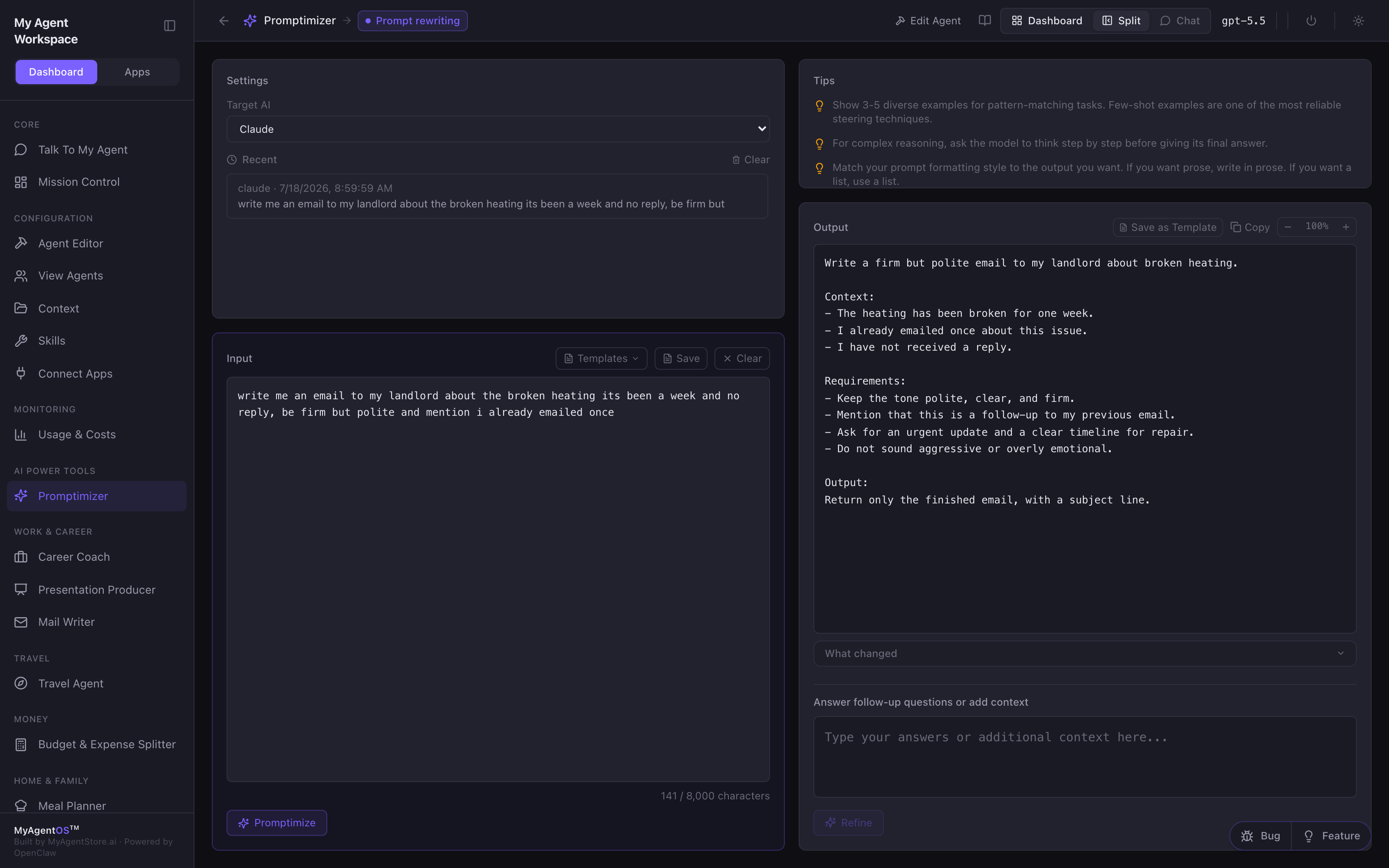
The view switcher in the top bar offers three layouts for the same tool:
| View | Layout | When to use it |
|---|---|---|
| Split | Input and result side by side. | The default: paste, optimise, copy. |
| Dashboard | Settings and input on the left, tips and output on the right, with prompt-writing tips on show. | When you want the guidance panel while you work. |
| Chat | A conversational thread: send a prompt, get the optimised version back as a reply. | When you are iterating through several prompts in a row. |
Templates and reuse
- Templates (above the input) drop in a ready-made scaffold: Standard,
Code review, Research and analysis, Document editing, or Blank. The Standard
scaffold uses XML tags (
<context>,<request>,<output>) to keep sections unambiguous. - Save stores your current input as a custom template; Save as Template does the same for an optimised result. Saved templates appear under the Templates menu.
- Edit Agent (top bar) opens the Promptimizer agent in the Agent Builder if you want to change how it rewrites.
Limits and FAQ
Does it send my prompt anywhere? The optimise step is a single model call through your own agent runtime, using the model shown in the top bar. Your recent prompts are stored locally in your browser, not on a server.
Is there a length limit? Input beyond 8,000 characters is ignored by the optimiser, so the counter turns to a warning before you reach it. Trim or split very long prompts.
Which model rewrites my prompt? Whichever model the lane is configured to use (visible in the top bar). "Target AI" is a separate choice: it tells the Promptimizer which model your optimised prompt is written for, not which model does the rewriting.