Settings
One page for how your agents run: which models they use, how they are named, what is connected, and how the workspace looks after itself.
Settings is long on purpose: it is the whole configuration of your workspace in one place. The Jump to list on the right is the fastest way around it, and most people only ever touch the first few sections.
Two things people change first:
- The models: choosing a provider preset, then giving chat a faster model than the one used for longer agent tasks.
- The names: calling your main agent something other than "Chief of Staff".
Who it is for: everyone, occasionally. You will visit it on day one and then only when something needs to change.
Where to find it: the sidebar, under System: Settings (/settings).
Watch first: settings.mp4 (captions toggleable in your player, or load settings.srt). The screen is a real recording of the product; the narration is an AI-generated voice.
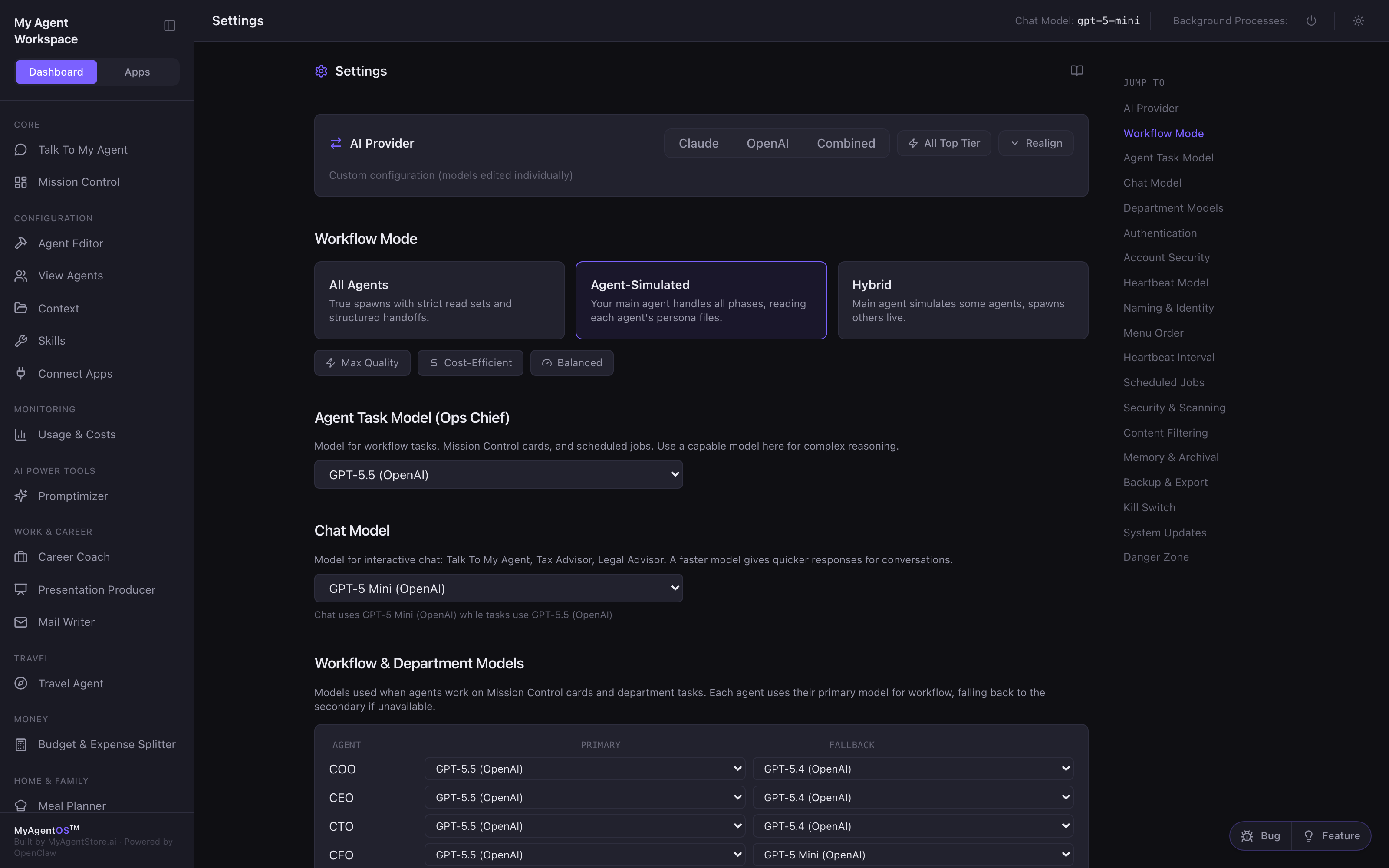
Saving: the one rule
Changes to the model and workflow settings appear immediately but are not saved until you select Save in the bar that appears at the top of the page. Discard puts everything back as it was. If you navigate away with changes pending, they are lost.
A few sections have their own buttons and save on their own (naming, heartbeat, retention). Those say so, with their own confirmation.
AI Provider and Workflow Mode
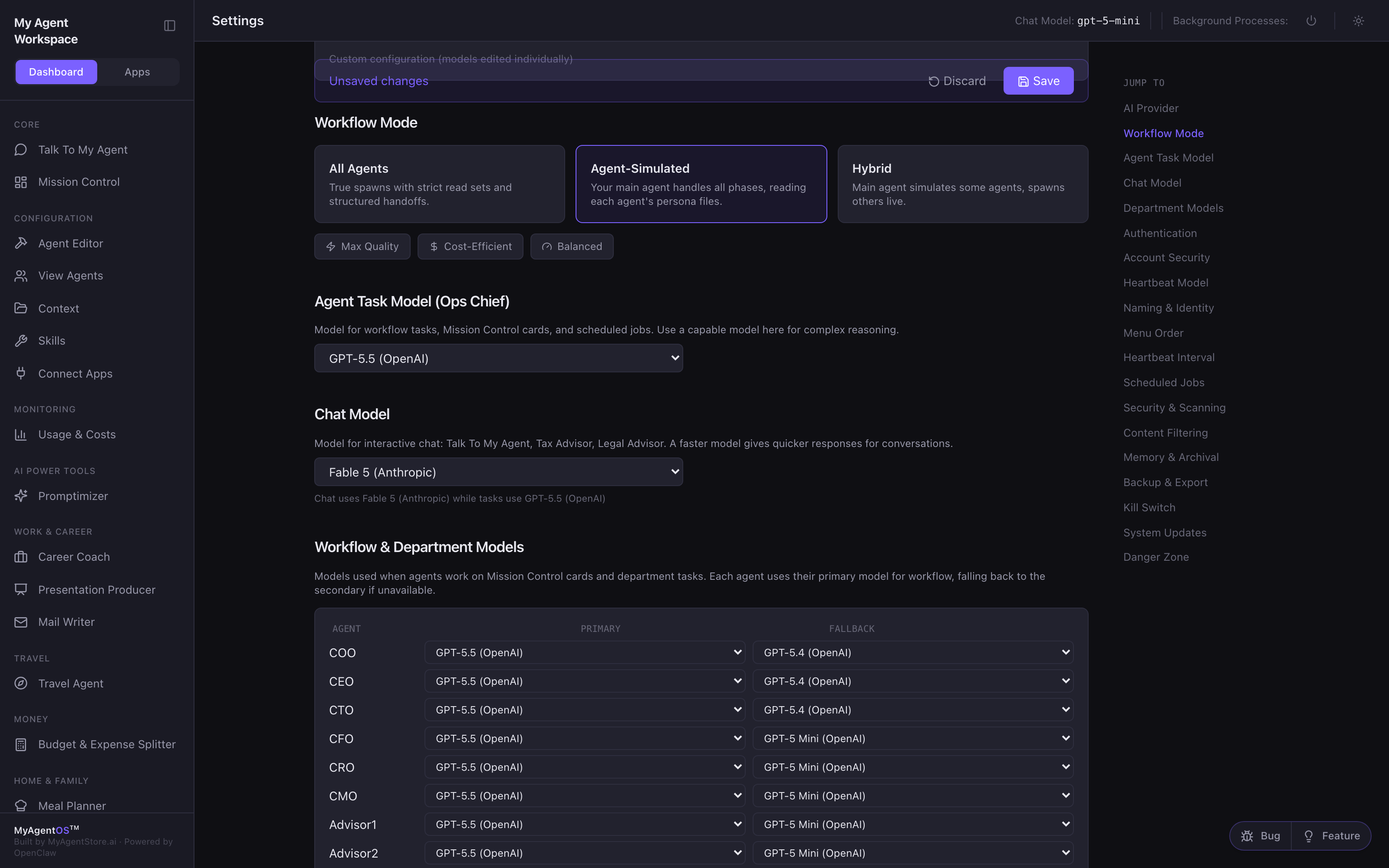
AI Provider is the quick route. Choose Claude, OpenAI or Combined and every agent is reassigned a sensible model for its job: a frontier model for the demanding roles, a cheaper one for the light ones. All Top Tier puts every agent on the best available model, and Realign opens the tier assignments if you want to set them yourself.
Workflow Mode decides how work is executed:
- All Agents: each agent runs independently, with strict handoffs.
- Agent-Simulated: your main agent handles every phase, reading each agent's persona files.
- Hybrid: a mix, with some agents live and others simulated.
The three preset buttons underneath (Max Quality, Cost-Efficient, Balanced) set the mode and the models together.
The models
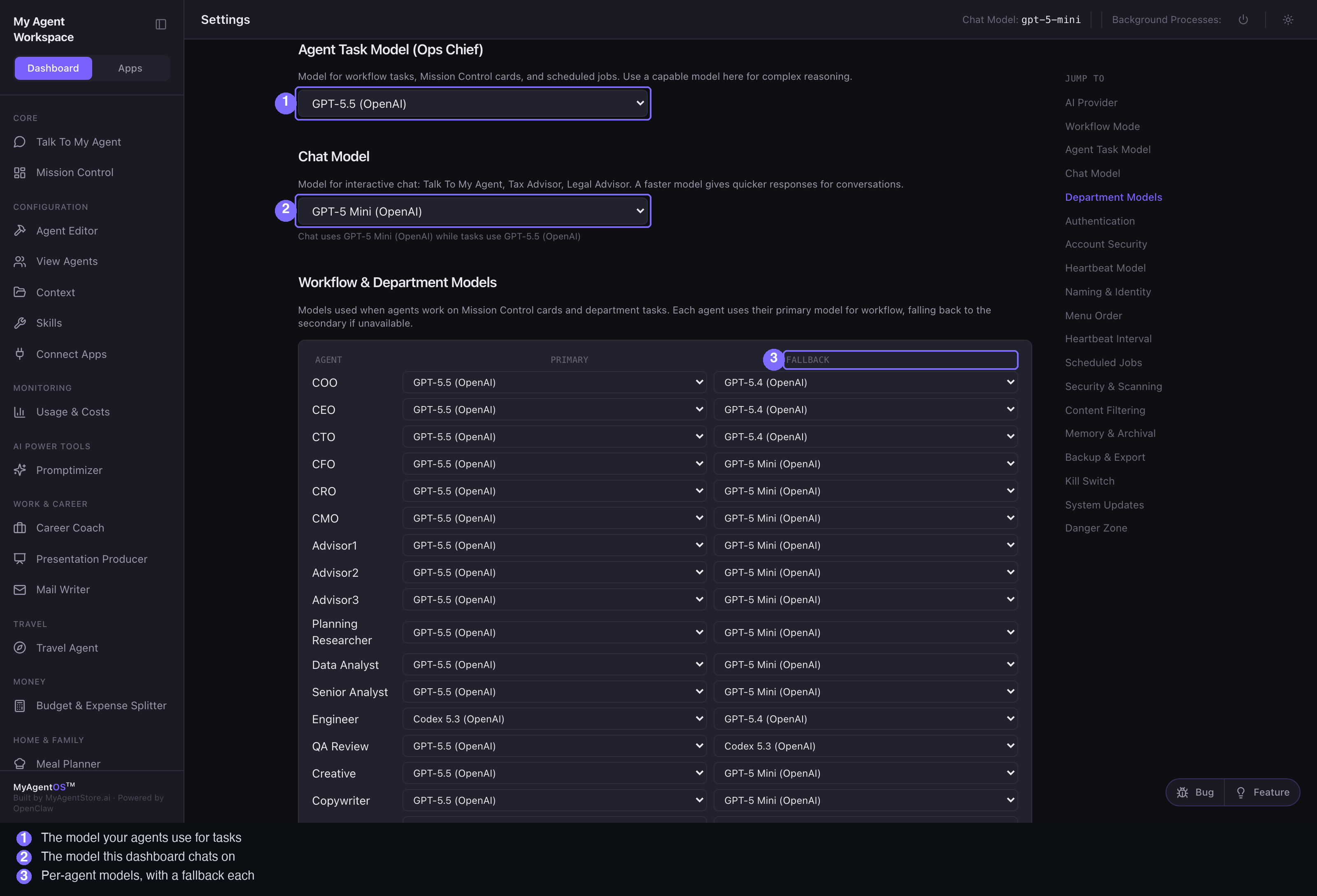
- Agent Task Model is what your main agent uses for workflow tasks, Mission Control cards and scheduled jobs. Use a capable model here.
- Chat Model is what Talk To My Agent runs on. A faster model gives quicker replies in conversation, and the top bar always shows which one is in use.
- Workflow & Department Models is the per-agent grid: a primary model and a fallback for each agent, used when they work on cards and department tasks.
Authentication
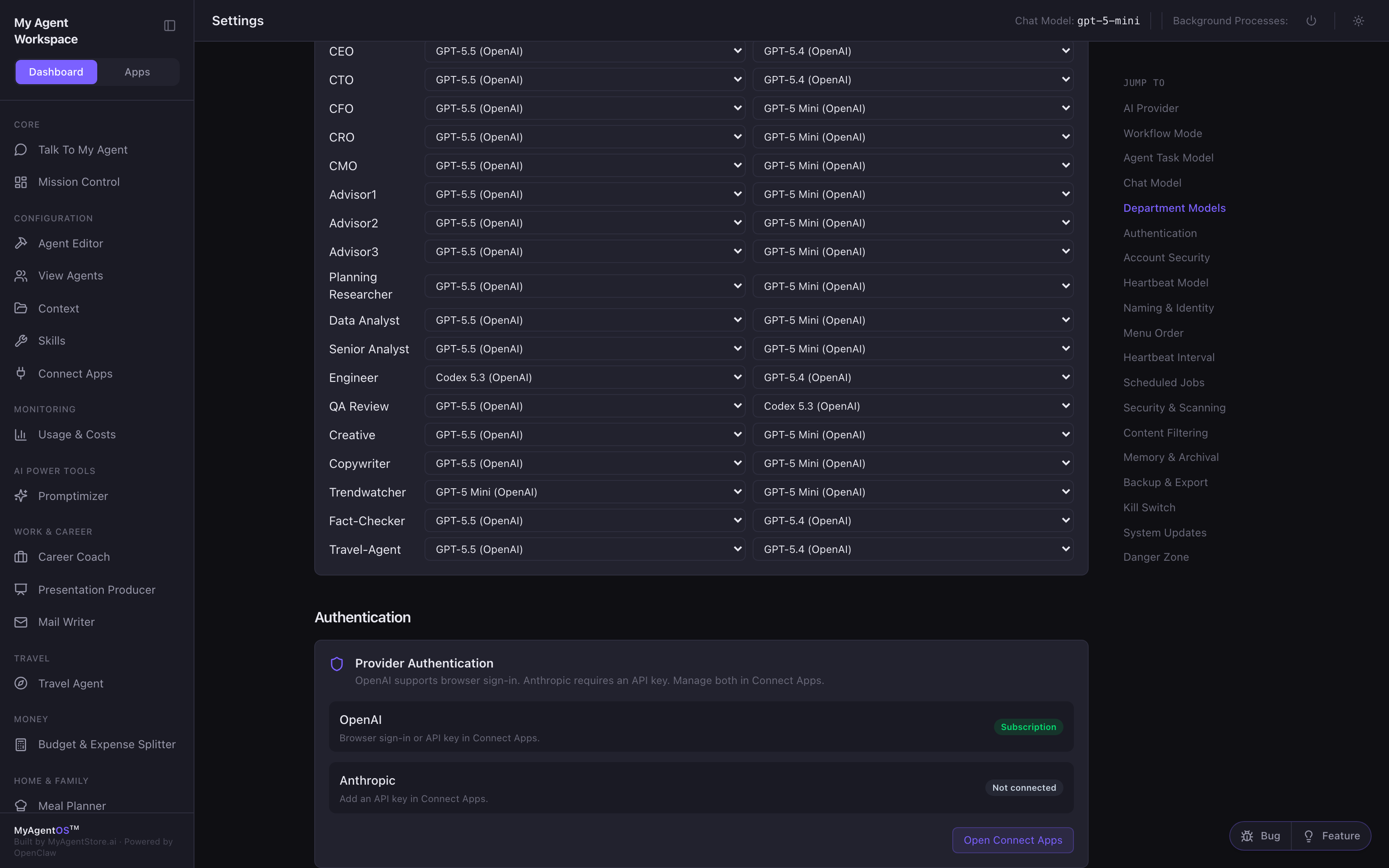
This section shows what is connected, not your credentials. Each provider row carries a status: Subscription (you signed in with your account), API Key, Connected, or Not connected. Your key is never displayed back to you and no account email is shown here.
To connect, change or disconnect a provider, select Open Connect Apps, which takes you to the setup page where that is done.
Naming, scheduling and housekeeping
- Naming & Identity: My Agent Display Name is what your main agent is called across the dashboard; Workspace Name and Dashboard Title are the labels on the workspace itself. Each has its own Update or Save button and confirms with Saved.
- Scheduled Jobs & Heartbeat Model: background checks and diagnostics rarely need your best model. A cheaper one here keeps costs down without affecting the work that matters.
- Heartbeat Interval and Scheduled Jobs: how often your agents check for work, and what runs on a schedule.
- Security & Scanning and Security Events & Content Filtering: what gets scanned, how often, and what is blocked.
- Memory & Archival: how long history is kept.
- Backup & Export: Download Backup produces a single archive of your workspace. Worth doing before any big change.
- Kill Switch: stops agent execution immediately.
- System Updates: your installed versions and the update controls.
Limits and FAQ
Why did my change not stick? It was probably never saved. Model and workflow changes need the Save button in the unsaved-changes bar at the top of the page.
Which model is actually running my chat? The one named in the top bar. That chip follows the Chat Model setting the moment you save it.
Why can I not see Cost Controls? That section only appears when at least one provider is connected with an API key. On a subscription there is nothing for it to cap; use the daily cap on Usage & Costs.
Can I change a single agent's model? Yes, in the Workflow & Department Models grid. The provider presets overwrite those choices, so set the preset first and adjust individual agents afterwards.
Where do I connect or disconnect a provider? On the Connect Apps page. Settings shows the status and links you there.