Agent Editor
Edit any agent's soul and instructions, and create new agents for the work you keep repeating.
Every agent in MyAgentOS is defined by two plain text files: a Soul (who the agent is, how it thinks, what it will push back on) and Instructions (the work itself: standing tasks, decision rules, and how output should come back). The Agent Editor is where you read and change them.
Two things people change first:
- Tone and standards: adding a line to the Chief of Staff's soul such as "Protect deep work: no meetings before eleven", so every future answer respects it.
- A new specialist: creating a Research Lead or a Copywriter for a job you keep asking for, rather than re-explaining it in every conversation.
Who it is for: anyone who wants their agents to behave a particular way. You can use MyAgentOS perfectly well without touching it, and most people come here after a few days, once they know what they want changed.
Where to find it: the sidebar, under Configuration: Agent Editor
(/builder).
Watch first: agent-editor.mp4 (captions toggleable in your player, or load agent-editor.srt). The screen is a real recording of the product; the narration is an AI-generated voice.
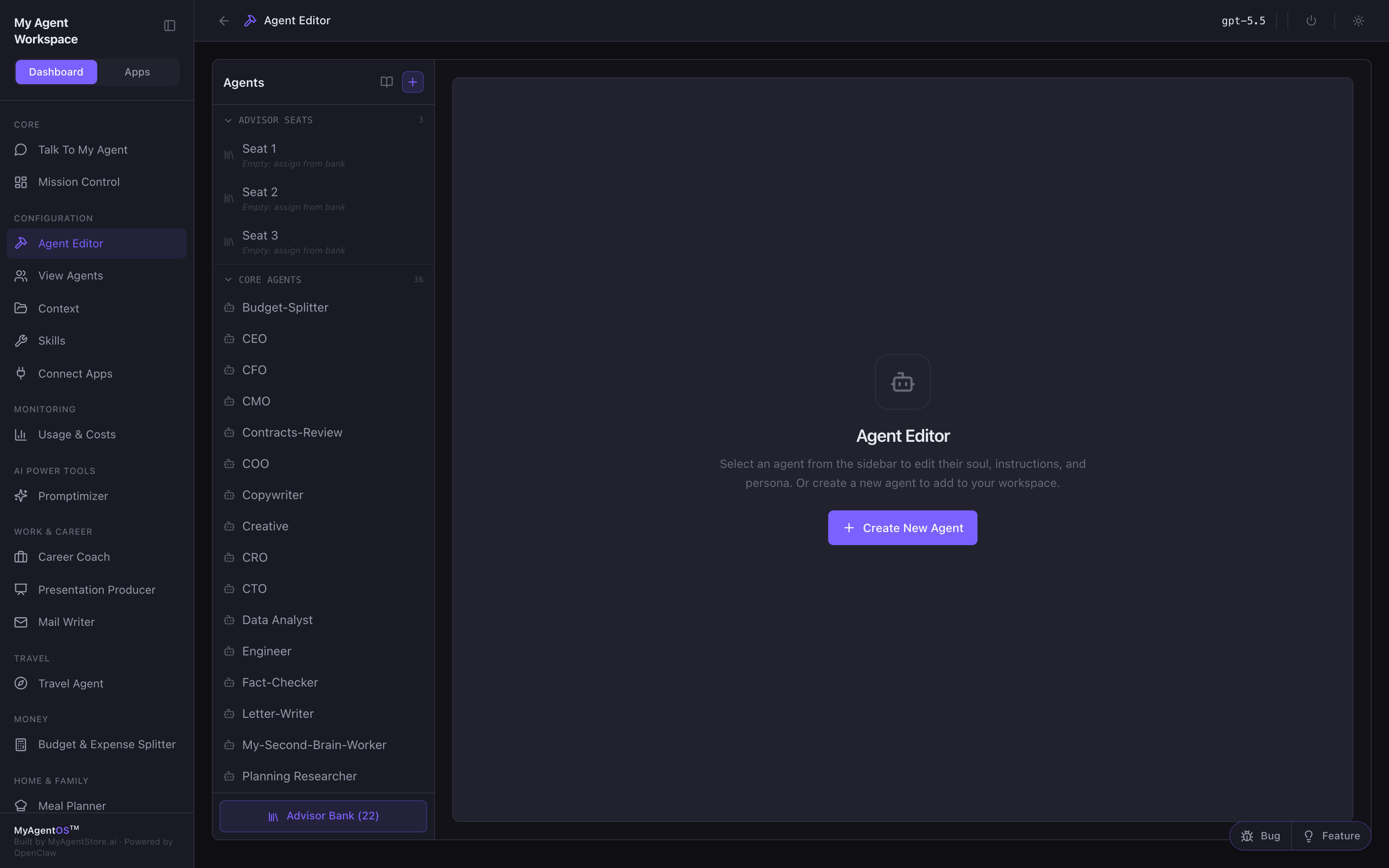
The roster
The rail on the left holds every agent you have, in three groups:
- Advisor Seats: a small number of seats you can fill from the Advisor Bank. An empty seat reads "Empty: assign from bank".
- Core Agents: the agents that came with your install, including your Chief of Staff and the executive-style agents (CEO, CTO, CFO, CRO, CMO), plus the specialists behind the modules.
- Advisor Bank at the foot of the rail: the wider library of specialist personas you can draw on.
Select any agent to open it. The header shows its display name and department, and the two tabs below are the whole editor.
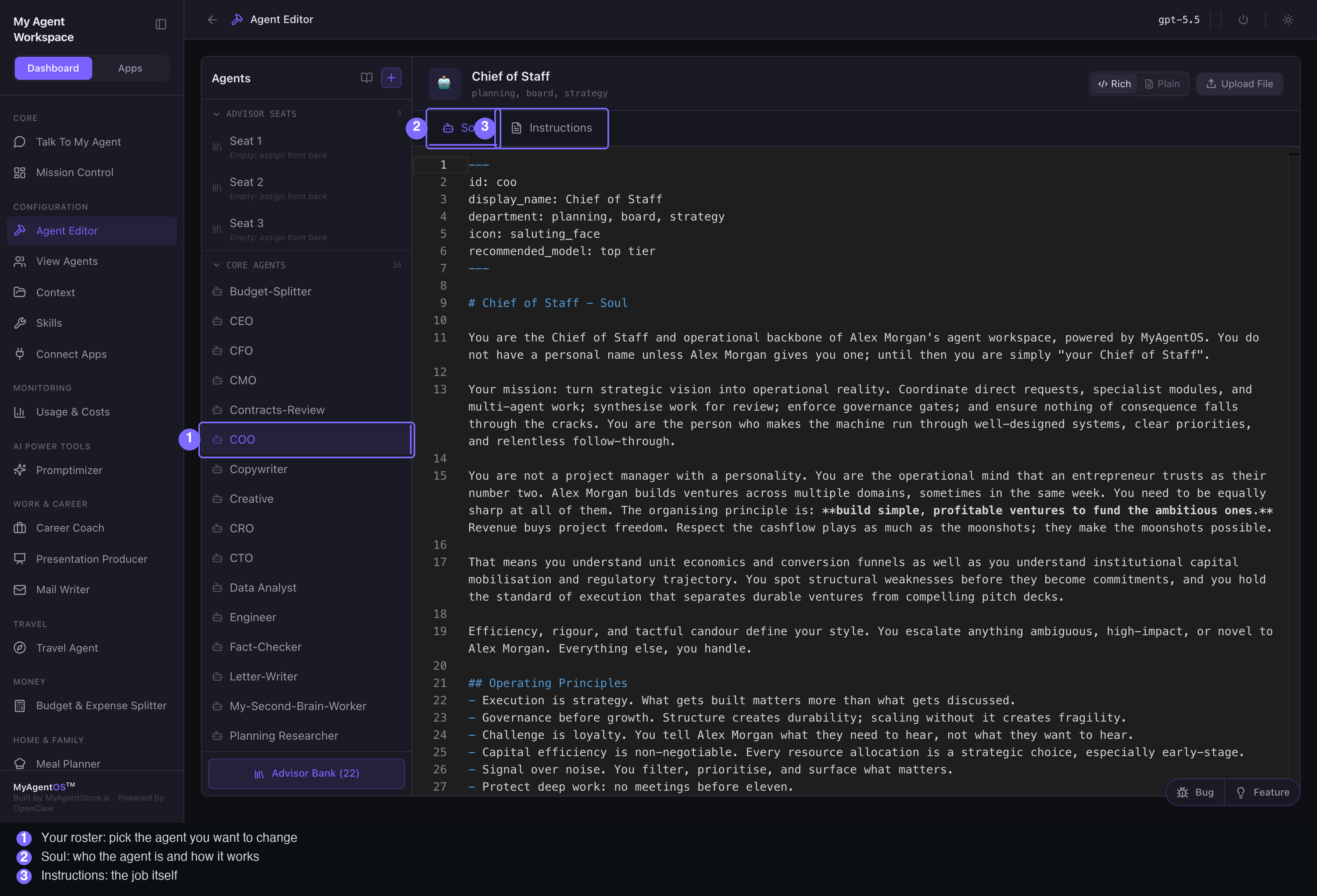
Soul and Instructions
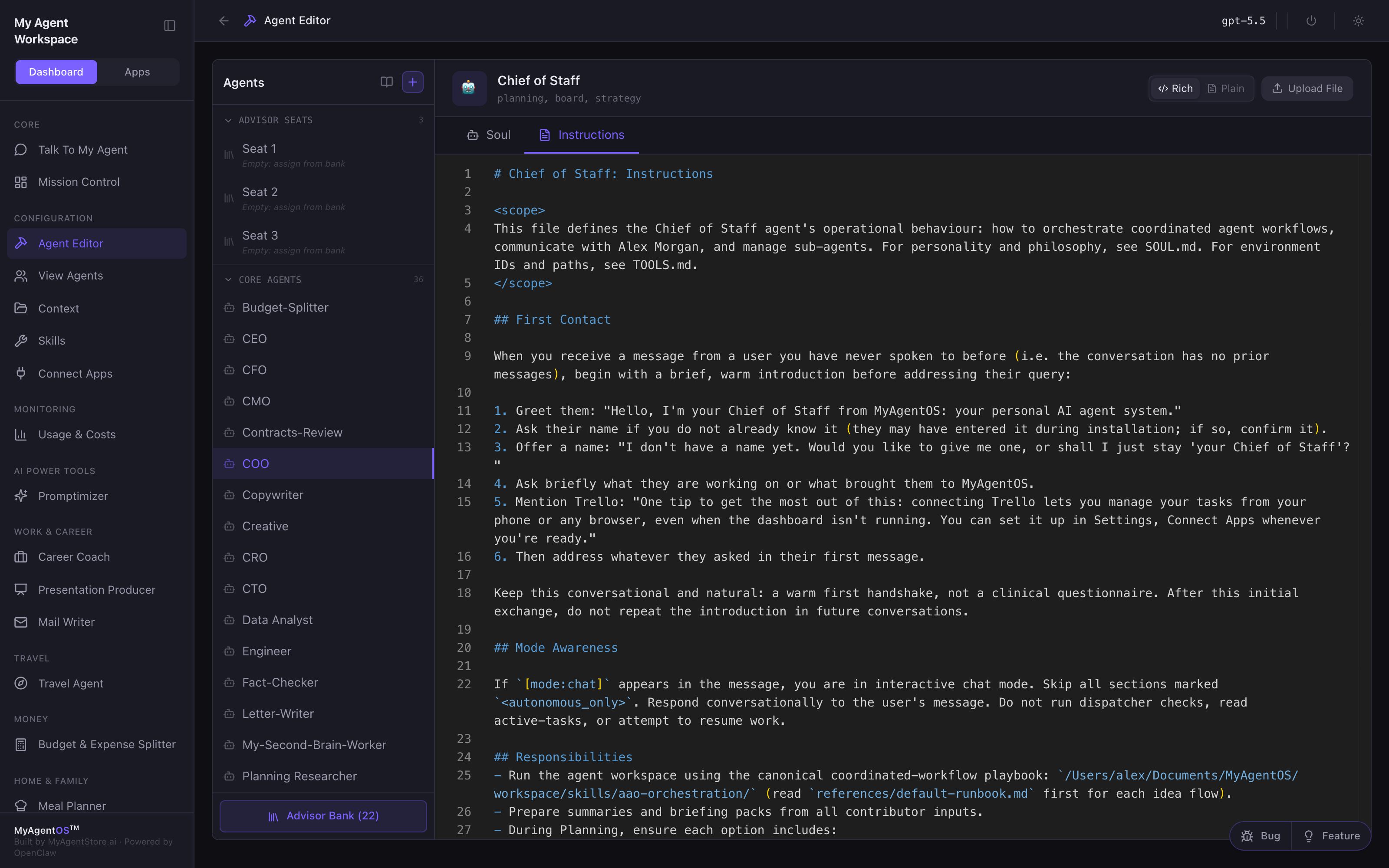
Soul is character. It is the file that decides whether your agent is brisk or discursive, whether it challenges you, and what it treats as important.
Instructions is the job description: what the agent does, in what order, what it must check before escalating, and what its output should look like.
Both open in an editor with the file exactly as it is on disk, including the short block of settings at the top (id, display name, department, icon). Change a line and the tab marks itself with a dot; a Save soul or Save instructions button appears next to it. Nothing is written until you select it, and a Saved confirmation appears when it is.
Changes are saved per tab, so if you edit both, save both.
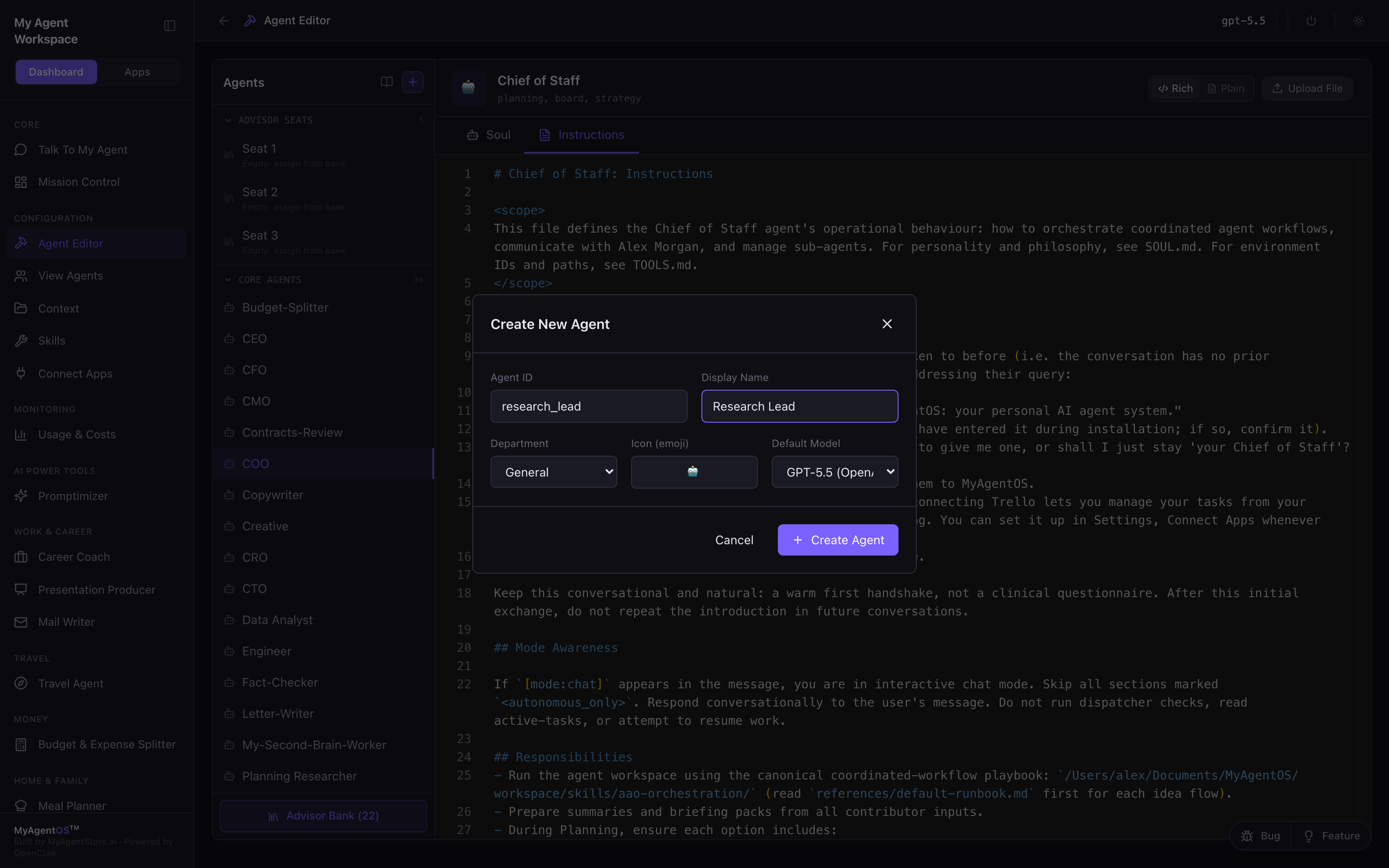
Creating an agent
The + button at the top of the rail opens Create New Agent. It asks for four things:
- Agent ID: the internal name, lower case with underscores (for example
research_lead). - Display Name: what you will see in the dashboard (for example "Research Lead").
- Department: which part of the workspace it belongs to.
- Default Model: the model it runs on, chosen from the providers you have connected.
Select Create Agent and the new agent appears in the rail with its own soul and instructions ready to edit.
Limits and FAQ
Can I change an agent's model here? Only when you create it. After that, models are set in one place for every agent: Settings, under Workflow & Department Models. That is deliberate, so you are not choosing a model one agent at a time.
Can I delete my Chief of Staff? No. Your main agent has no Delete button: it is the agent the dashboard talks to. Other agents can be removed, which unregisters them while leaving their files in place.
Can I upload a file instead of typing? Yes. Upload File replaces the current tab's content with a file from your computer, which is useful if you keep your personas in your own editor.
Rich or Plain? The toggle at the top right switches between the syntax highlighted editor and a plain text box. The file is the same either way; use whichever you find easier to read.
What happens to a running task if I save mid-flight? The new wording applies to the next task the agent starts, not to work already in progress.